People
Background Remover
Cut a person cleanly out of an old photo for a collage, a card or a new backdrop
4 free credits to start, enough for one Standard pass of this tool.
- 1Upload the photo, restored first if it is soft or grainy
- 2Choose Standard for a clear edge or Pro for hair, lace and soft outlines
- 3Download the transparent PNG and place it on a new background
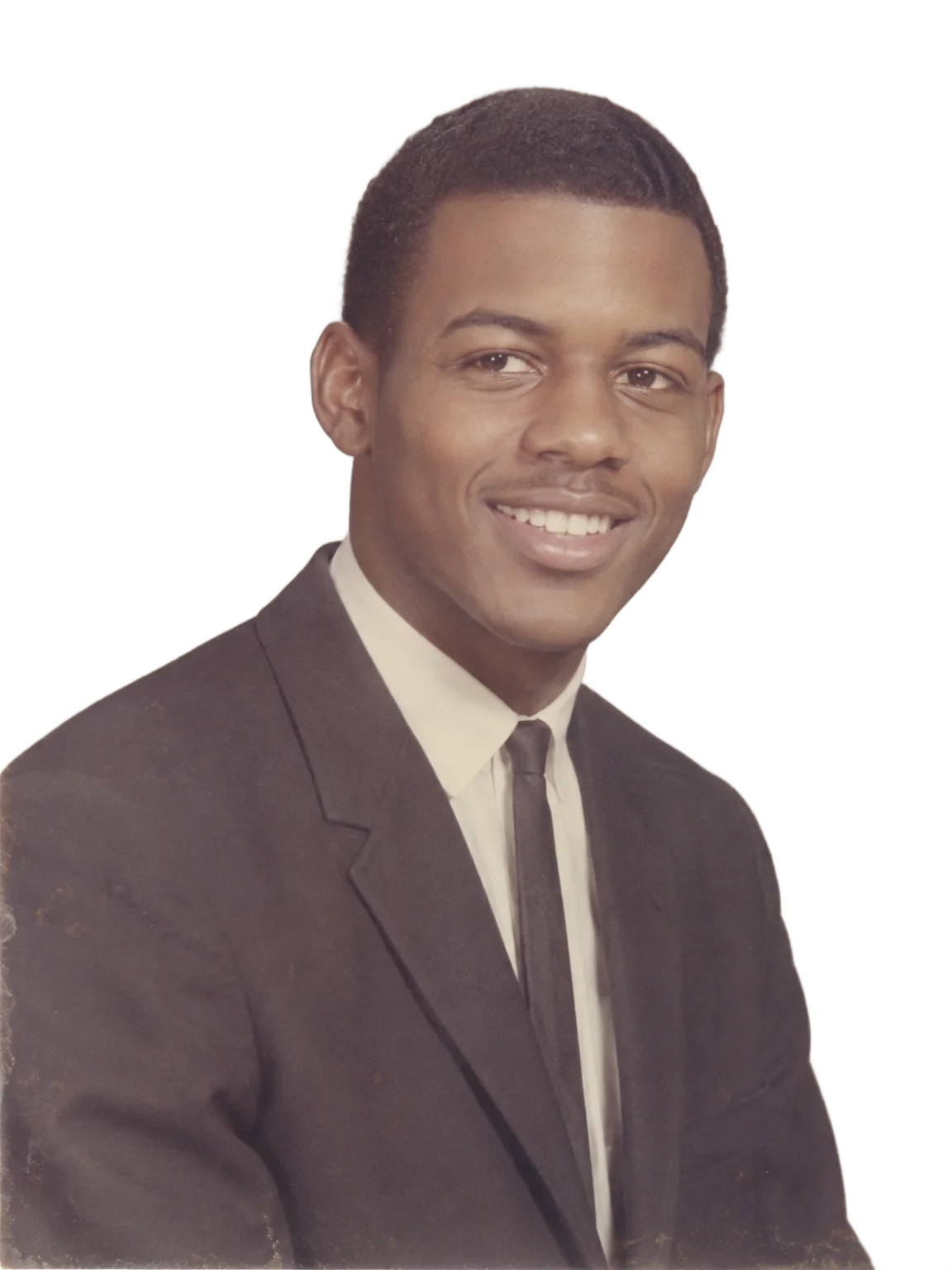
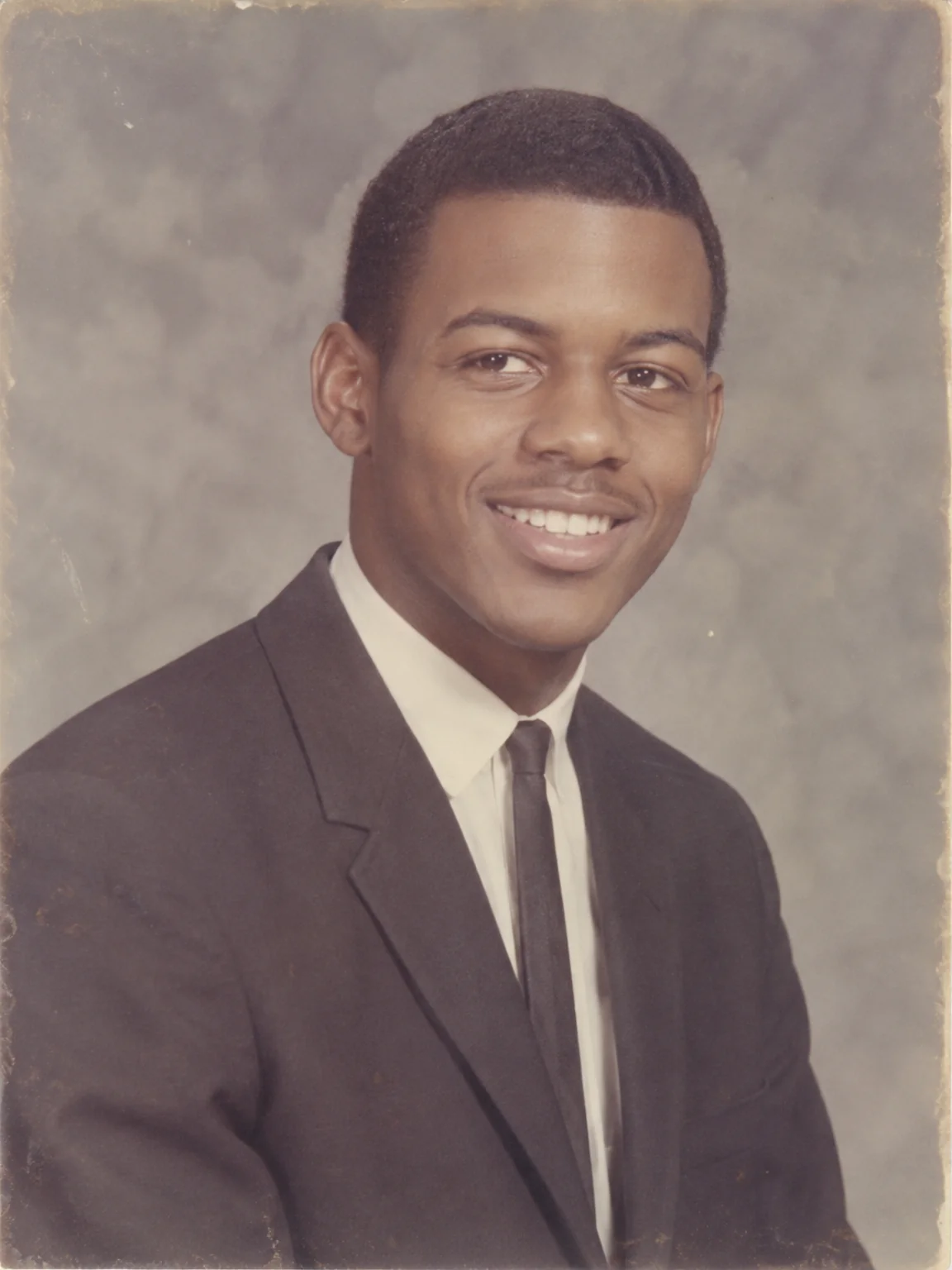
Restored by this tool from the original. Drag the handle to compare before and after.
There are times when the person matters and the background does not. A memorial card that wants grandad against a plain wash of color rather than the garage he was standing in front of. A family tree poster where each ancestor should sit on the same cream ground. A collage of three generations for an anniversary, cut from three different prints taken in three different rooms. The Background Remover cuts the person out of the photograph and returns them on a transparent background as a PNG, with a checkerboard shown behind the result so you can see the edge. What you do with the cut-out is up to you: place it on a new backdrop, drop it into a card layout, or combine it with others.
There are two ways to run it. Standard costs 1 credit and handles a clear subject against a distinct background well: a portrait against a wall, a figure against sky. Pro costs 4 credits and is the choice when the edge is difficult, which for old photographs means most of the time: wispy hair against a similar-toned background, a lace collar, the soft, slightly blurred edge of a print that was never sharp, a veil. Pro spends more effort on those edges so that hair reads as hair rather than a hard cut-out shape. Faces and clothing are not altered by either mode; this is a cutting tool, not a restoration one. Either mode keeps the full pixel size of the upload, so a large scan gives a large cut-out.
Because the cut follows the edge of the person as scanned, it pays to restore first and cut second. A sharpened, de-grained print gives a cleaner outline than a soft, speckled one, and the Studio can chain restoration into background removal in one sequence. Results come back in seconds and keep the shape of the upload, with the removed area transparent. A cut-out placed on a plain background can be sent back through the Memorial Portrait tool, or enlarged for printing with the upscaler, and both steps are offered from the result. The original photo stays as uploaded, so the background can always be had back. Cut-outs from several prints can be set on one shared backdrop for a collage that spans generations.
Credits per pass
| Tier | Credits | Good for |
|---|---|---|
| Standard | 1 | Clean cut-out, quick |
| Pro | 4 | Finer edges around hair, lace and hats |
What you can tell it
- Photo to cut out
- Result · Same ratio as the original · Transparent PNG
In the Studio
- Pass the result into any other tool without uploading again
- Standard, Pro and Max tiers, with the cost shown before you run
- Every restoration kept in your library beside its original
- Upscale to 32 MP for framing, or make a short moving version
About this tool
Often used next
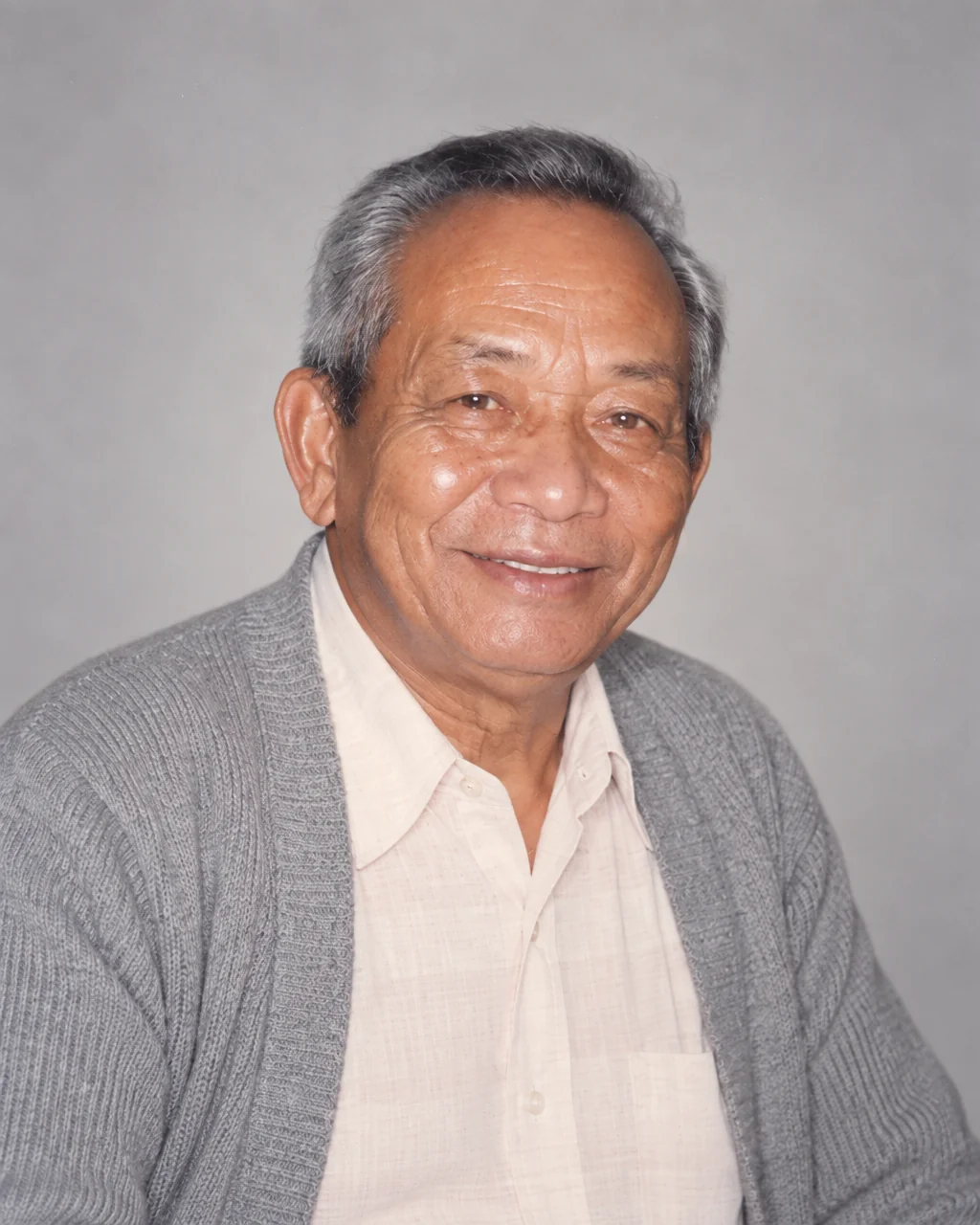
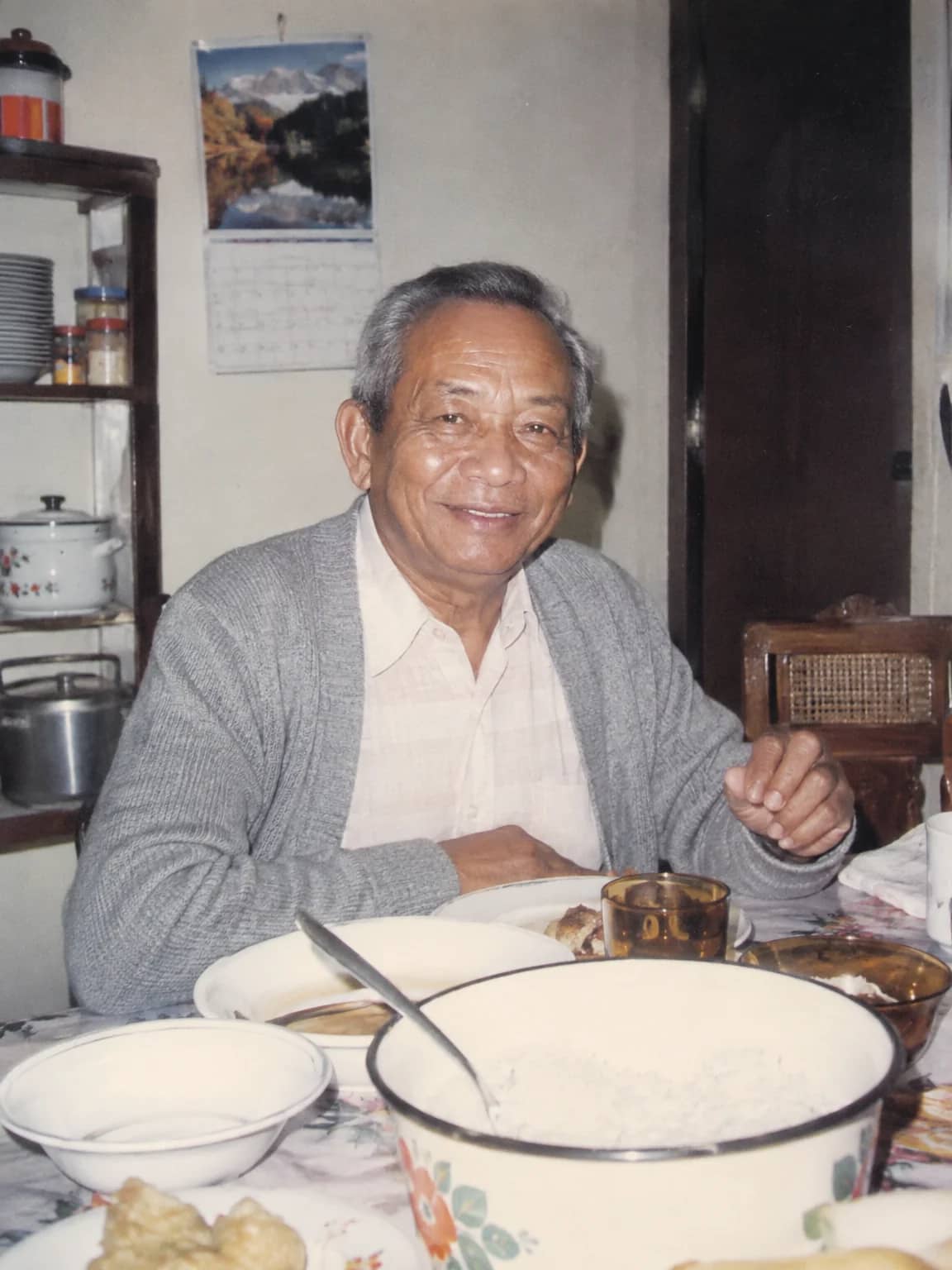
Memorial Portrait
A gentle, restored head-and-shoulders portrait for a service, card or frame
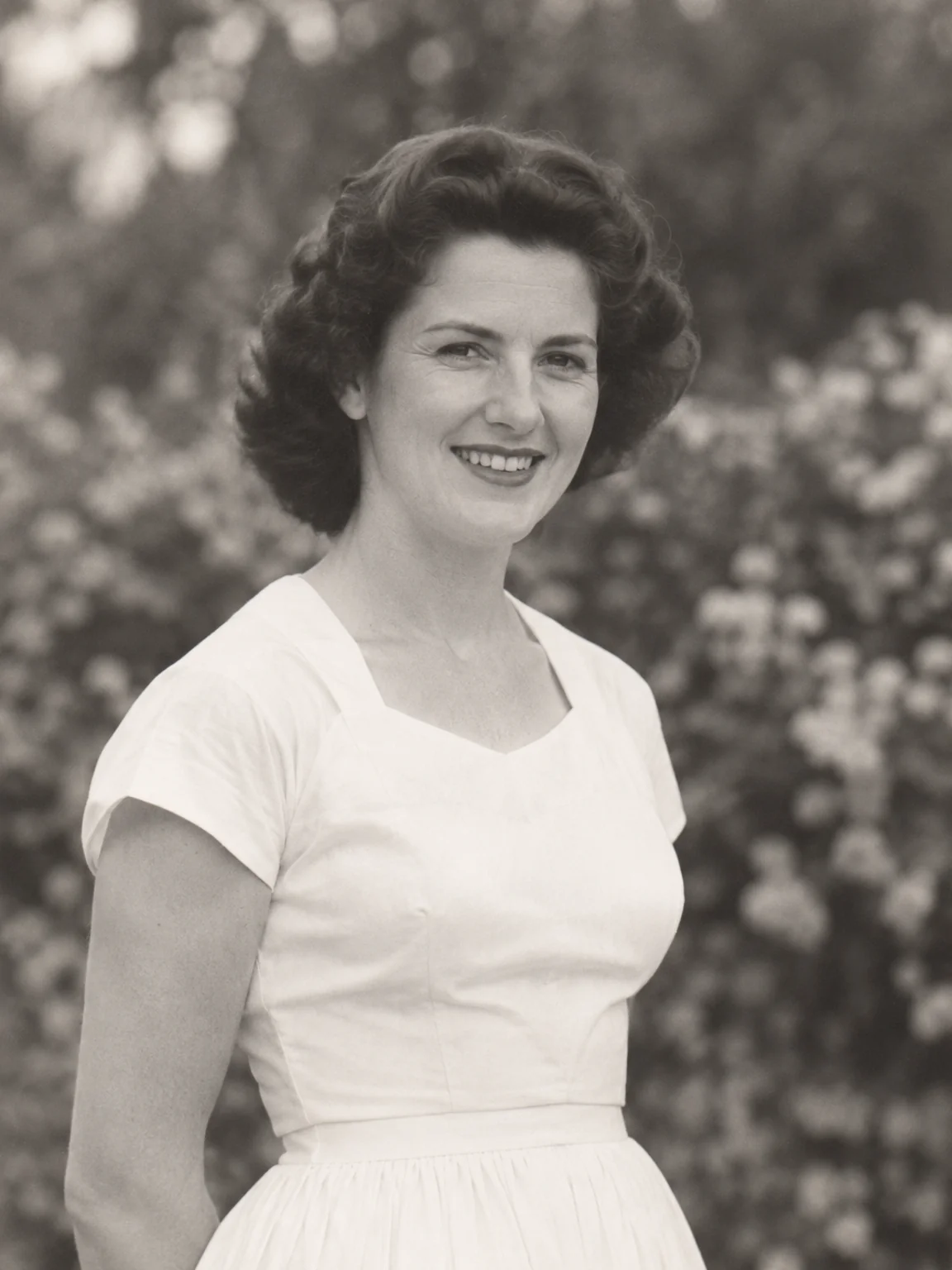
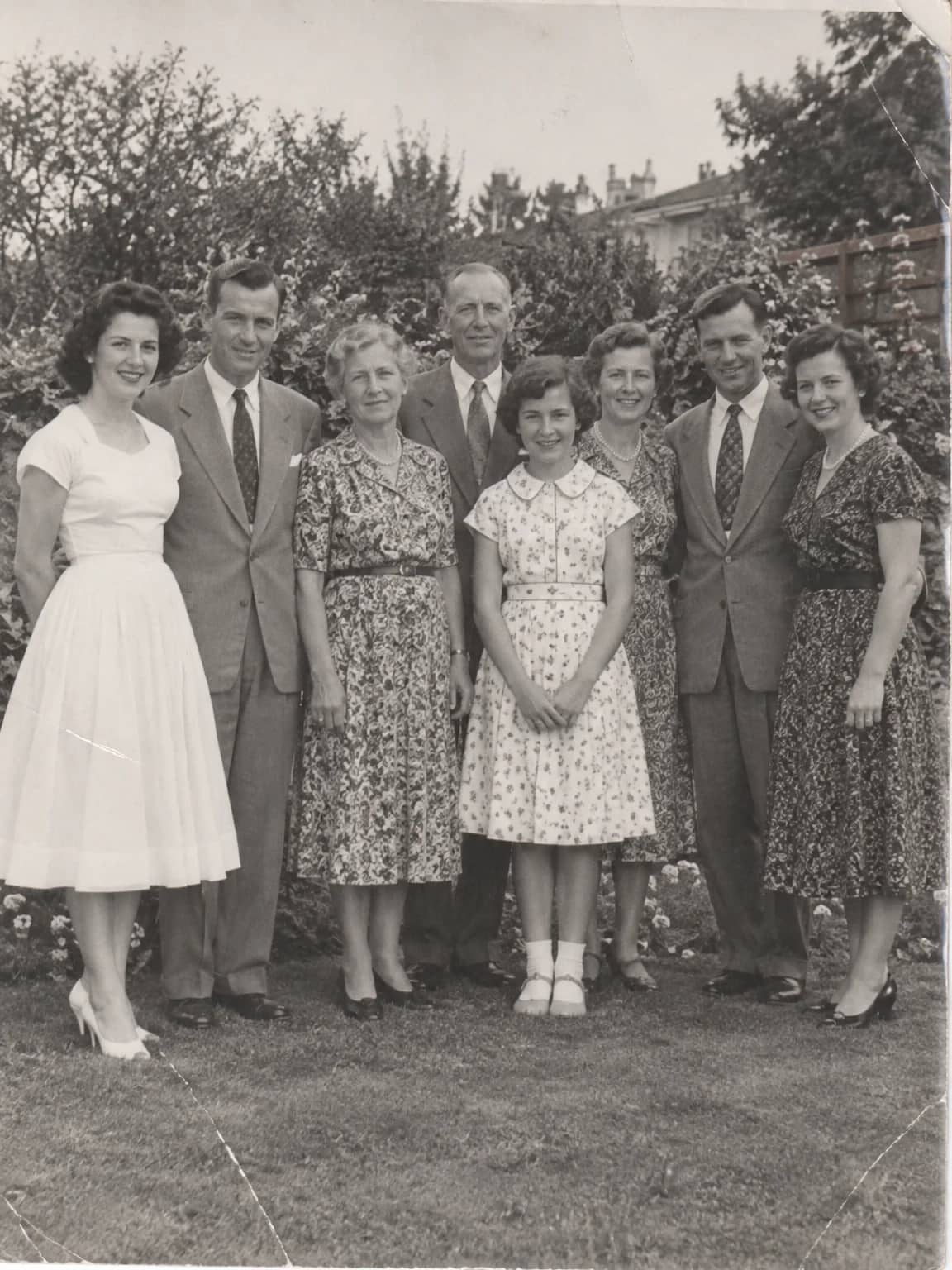
Crop a Person from a Group Photo
Lift one person out of a crowd into a restored head-and-shoulders portrait
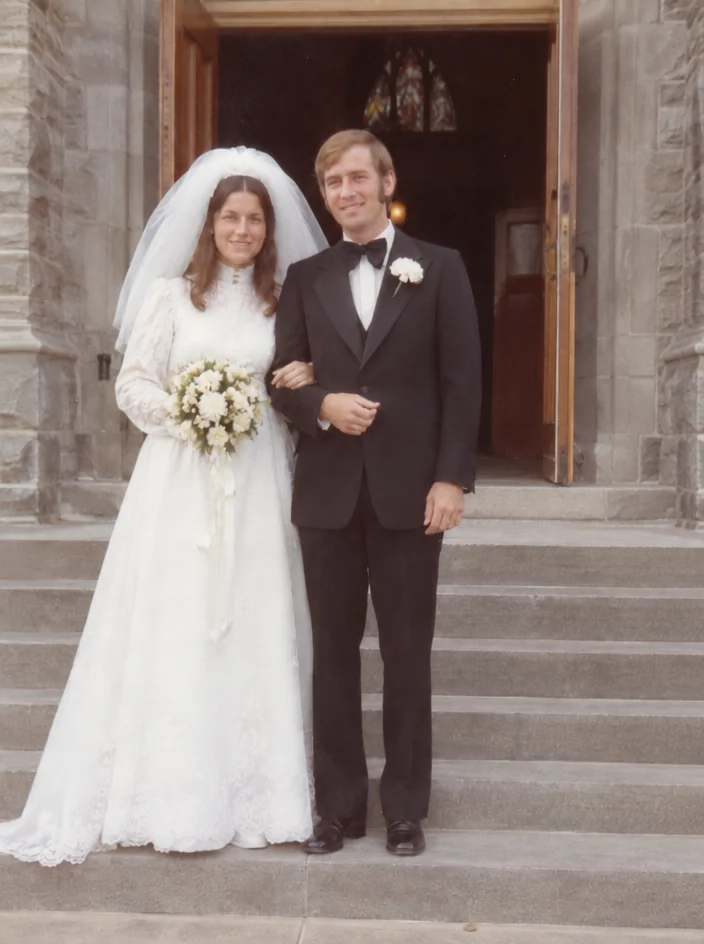
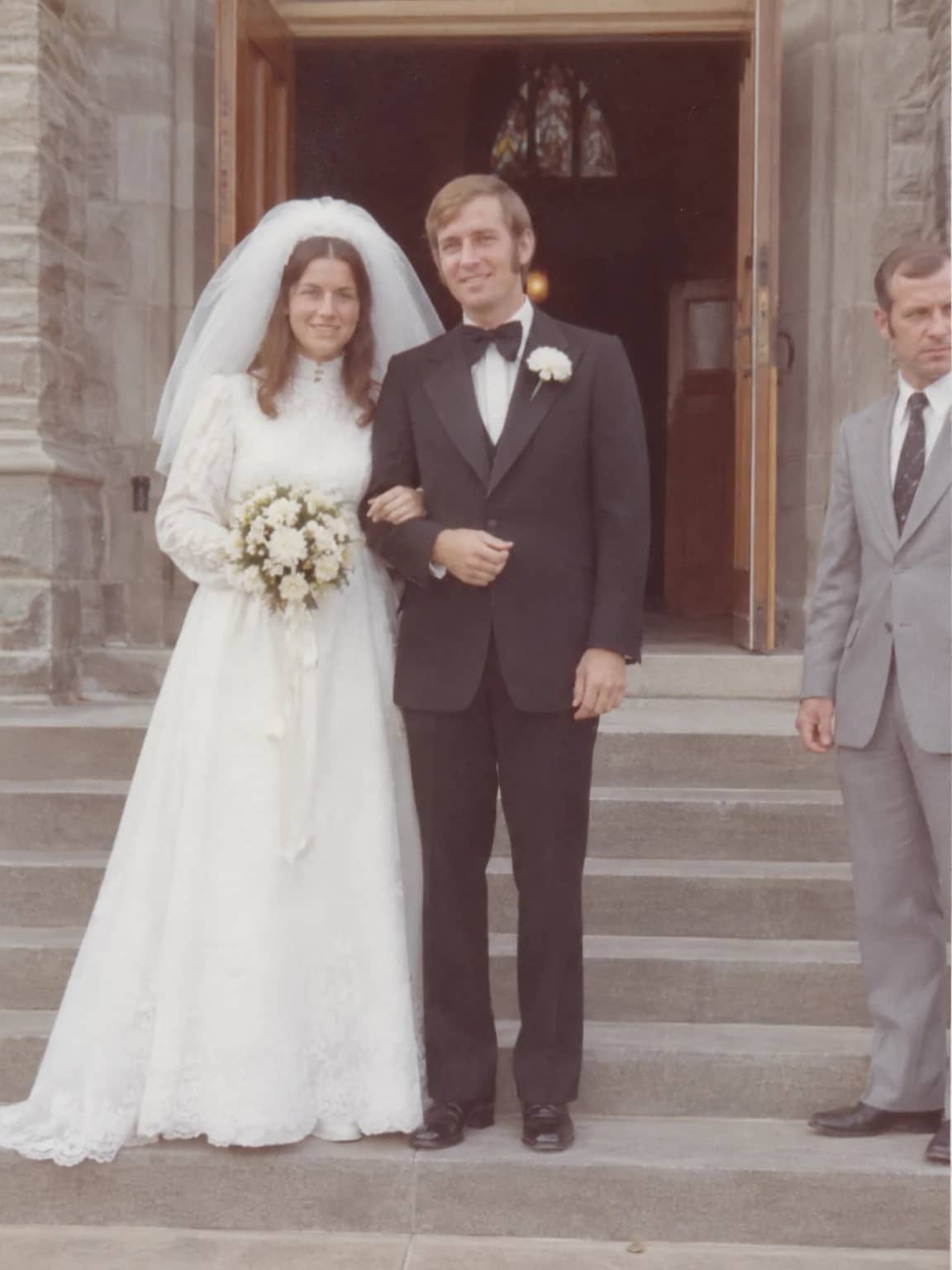
Remove a Person
Take one person out of a photo and continue the scene behind them
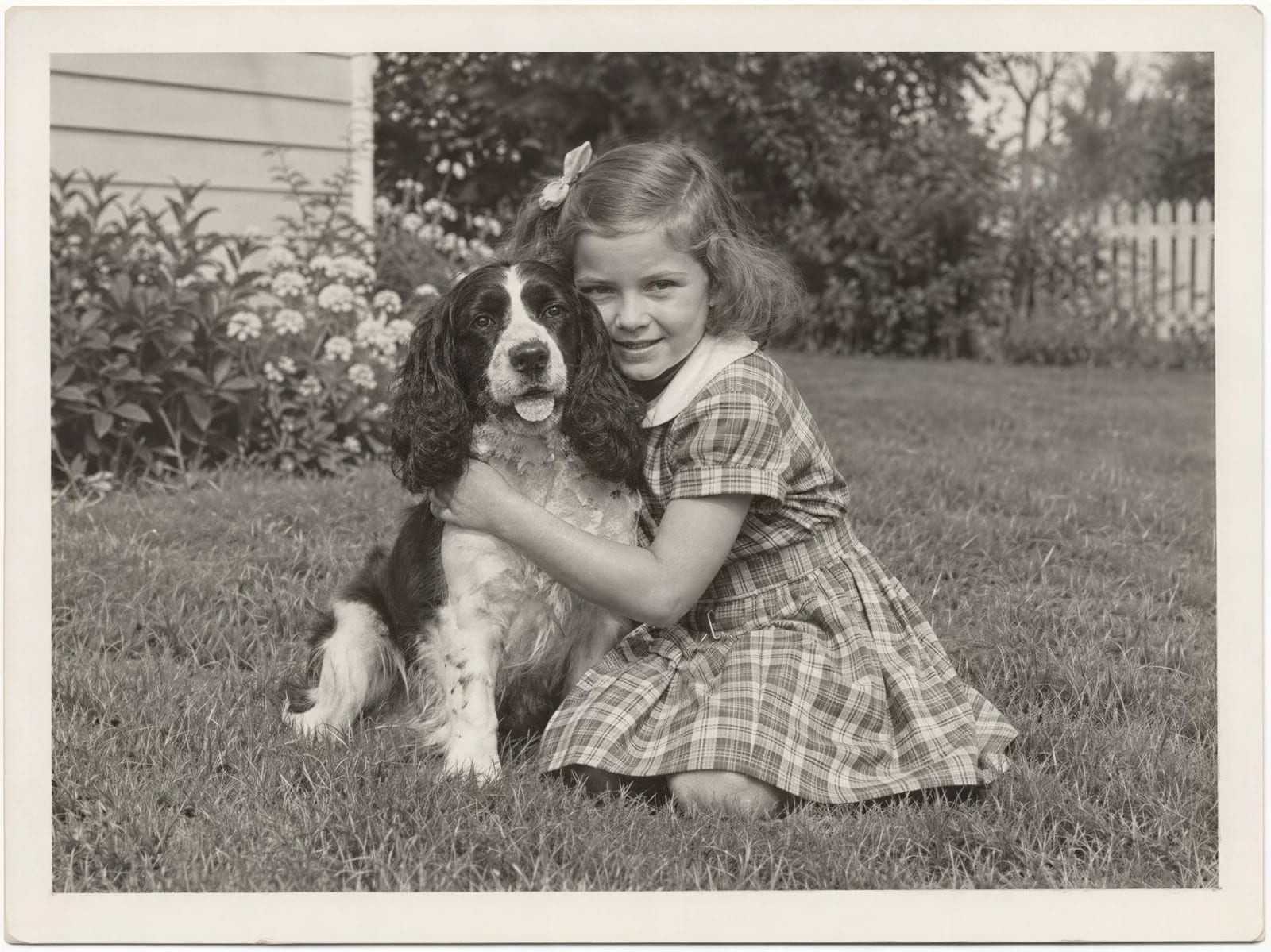
Image Upscaler
Enlarge a restored photo for reprinting, from a small scan up to 32 megapixels