Sharpen & clean
Unblur Old Photos
Recover crisp edges and texture from soft, shaken or out-of-focus prints
4 free credits to start, enough for one Standard pass of this tool.
- 1Upload the soft or shaken photo at the largest size you have
- 2Choose whether to sharpen the whole frame, the faces first, or the fine details
- 3Download the sharpened photo or enlarge it for a reprint
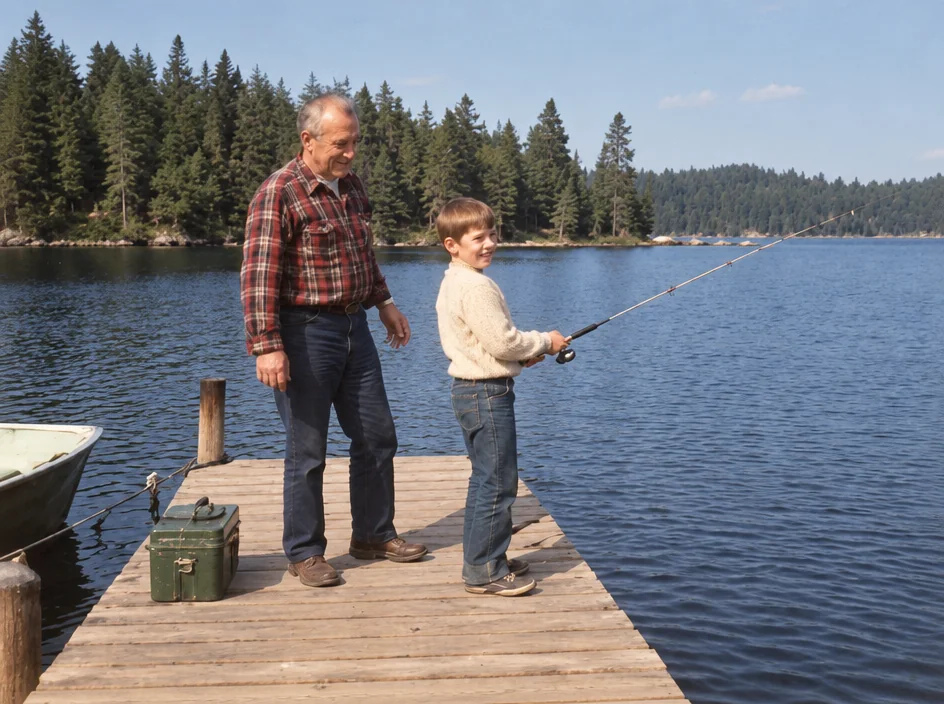
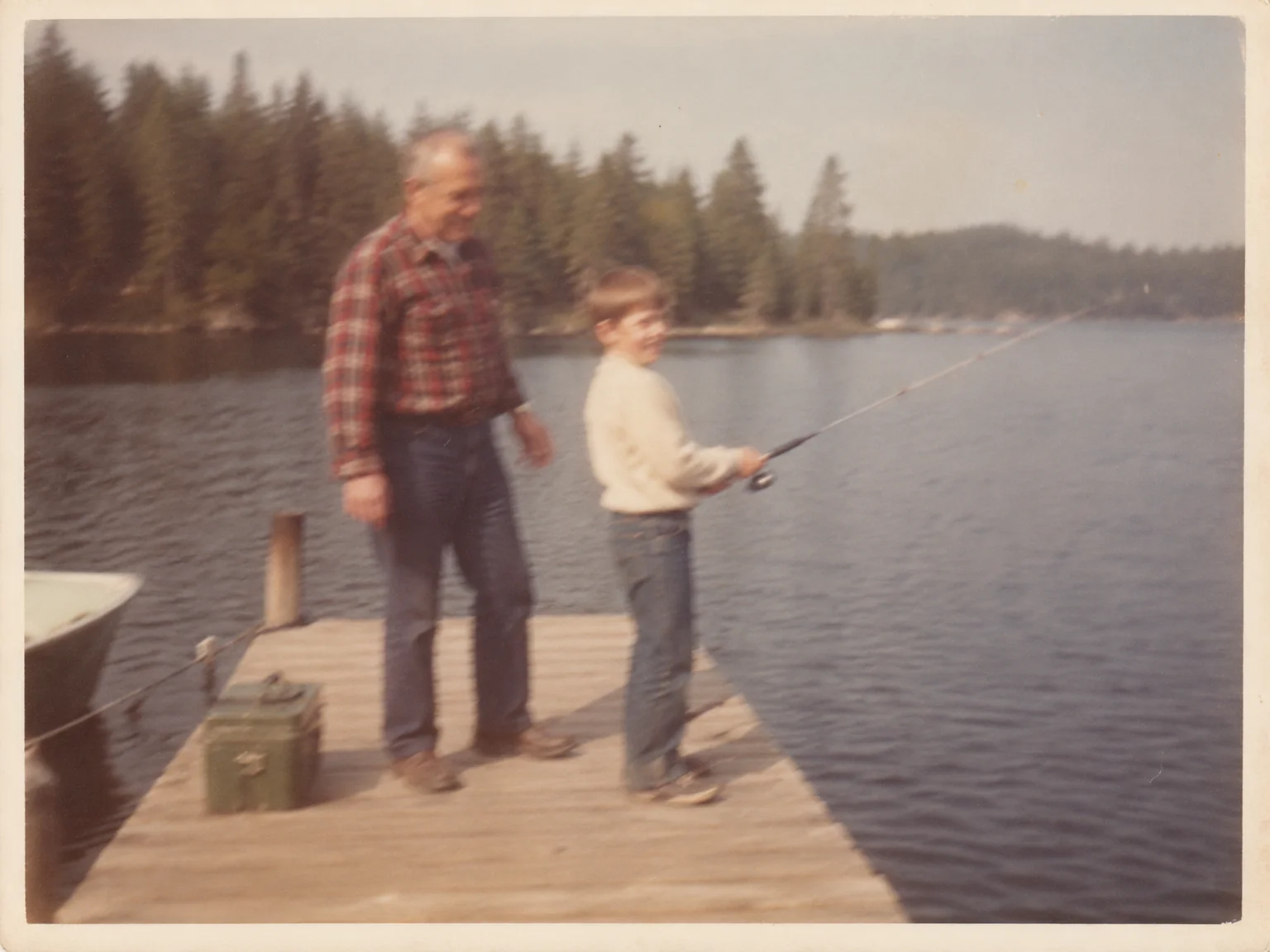
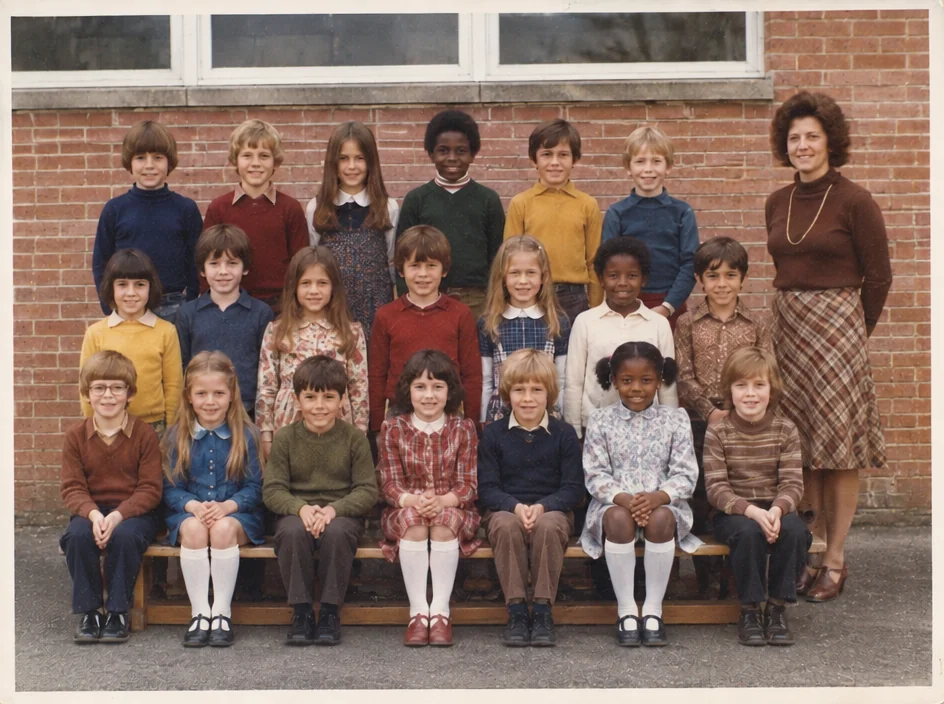
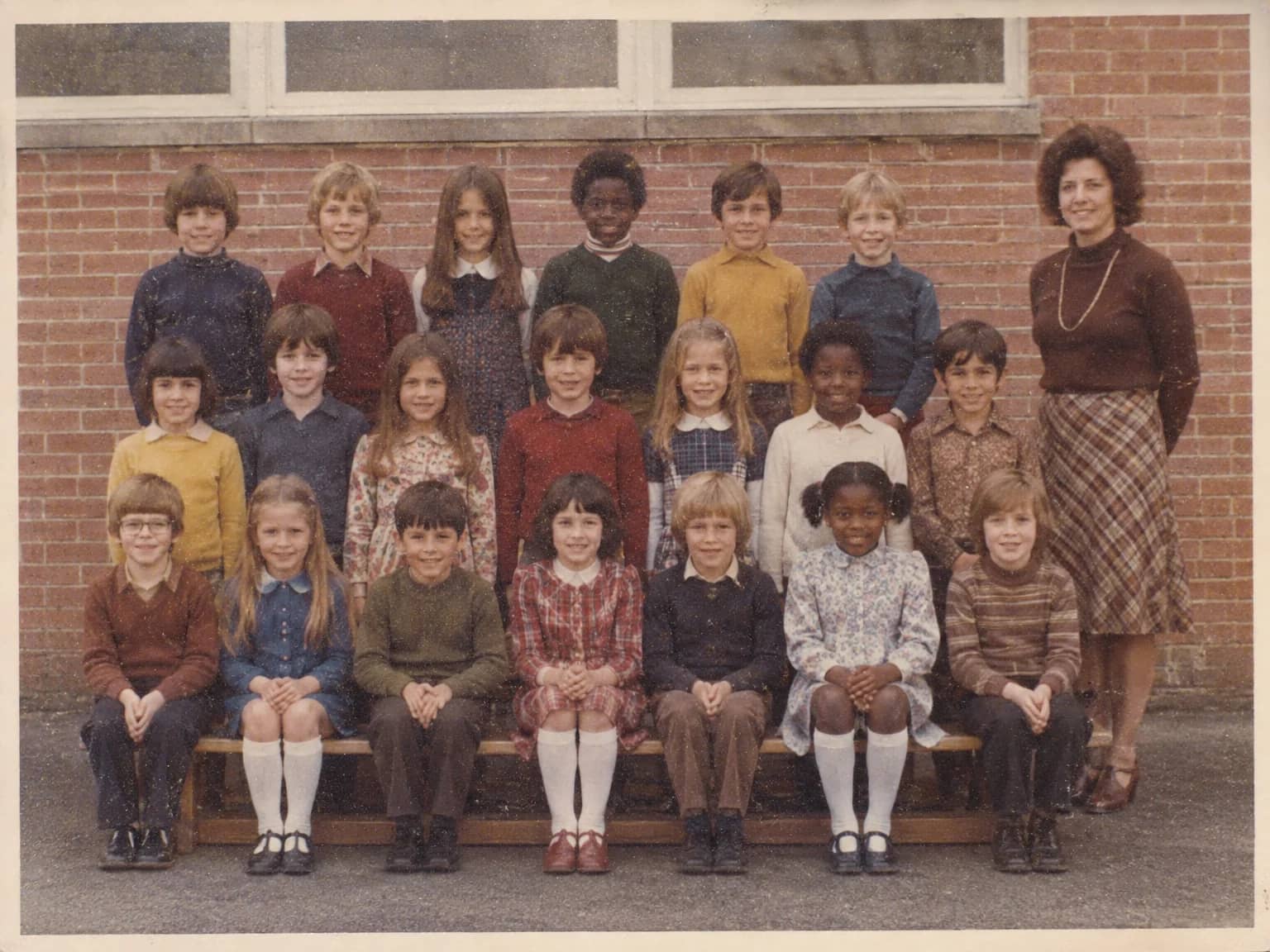
Restored by this tool from the original. Drag the handle to compare before and after.
Blur in an old photograph comes from a few places. The camera moved during a slow exposure, which smears everything in one direction. The focus was set a little short, so the faces are soft and the fence behind them is sharp. Or the print itself is small and was copied from a copy, and the softness is baked into the paper. Unblur Old Photos addresses all three. It recovers crisp edges and fine texture, removes the streak of motion blur and camera shake, and does it without the halos and crunchy edges that a simple sharpening filter leaves behind. The instructions also tell the AI not to invent detail: where the original carried nothing, nothing is made up.
The Sharpen select sets the priority. Whole photo treats the frame evenly and is the right choice for landscapes, buildings and street scenes. Faces first gives the faces the closest attention and then brings the rest of the frame up to match, which is what most family photos want. Fine details is for the things people squint at: text on a shop sign, the pattern of a dress, a brooch, the weave of a jacket, strands of hair. That mode is useful for genealogy work where a name on a sign or a badge on a uniform is the whole point of the photograph. A note on what to expect: the recovered sharpness is limited to what the pixels can support, so a heavy blur becomes a mild one rather than a crisp image.
Upload the largest file you have, because sharpening is limited by how much information is in the pixels to begin with. A 300 dpi scan of a small print will sharpen far better than a screenshot of it. Results keep the shape of the upload and return in seconds. If the faces are the only thing that matters and they are very small, Face Restoration on the Strong setting goes further than this tool will; if the photo is noisy as well as soft, remove the grain first so the AI does not sharpen the noise. A sharpened print will show its scratches and spots more clearly than the soft original did, which is a good reason to run the repair tools next if it has any, and the Studio makes that a single further step from the result.
Credits per pass
| Tier | Credits | Good for |
|---|---|---|
| Standard | 4 | The print at screen size, quick repairs |
| Pro | 12 | More of the scan is sent, finer faces and texture |
| Max | 44 | The full scan, every readable detail kept for print |
What you can tell it
- Blurry photo
- SharpenWhole photoFaces firstFine details
- Result · Same ratio as the original
In the Studio
- Pass the result into any other tool without uploading again
- Standard, Pro and Max tiers, with the cost shown before you run
- Every restoration kept in your library beside its original
- Upscale to 32 MP for framing, or make a short moving version
About this tool
Often used next
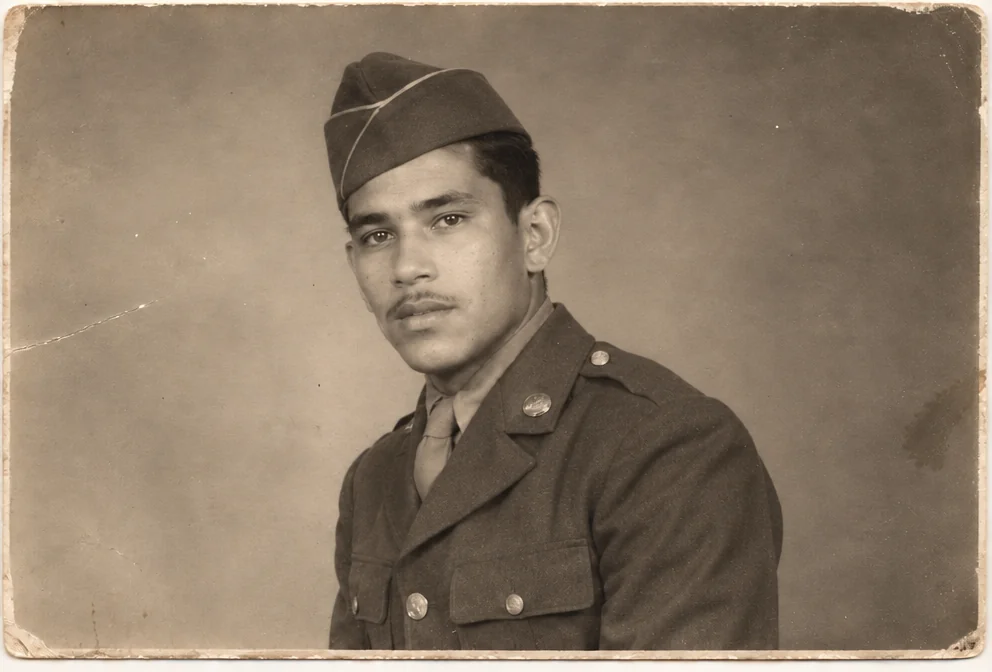
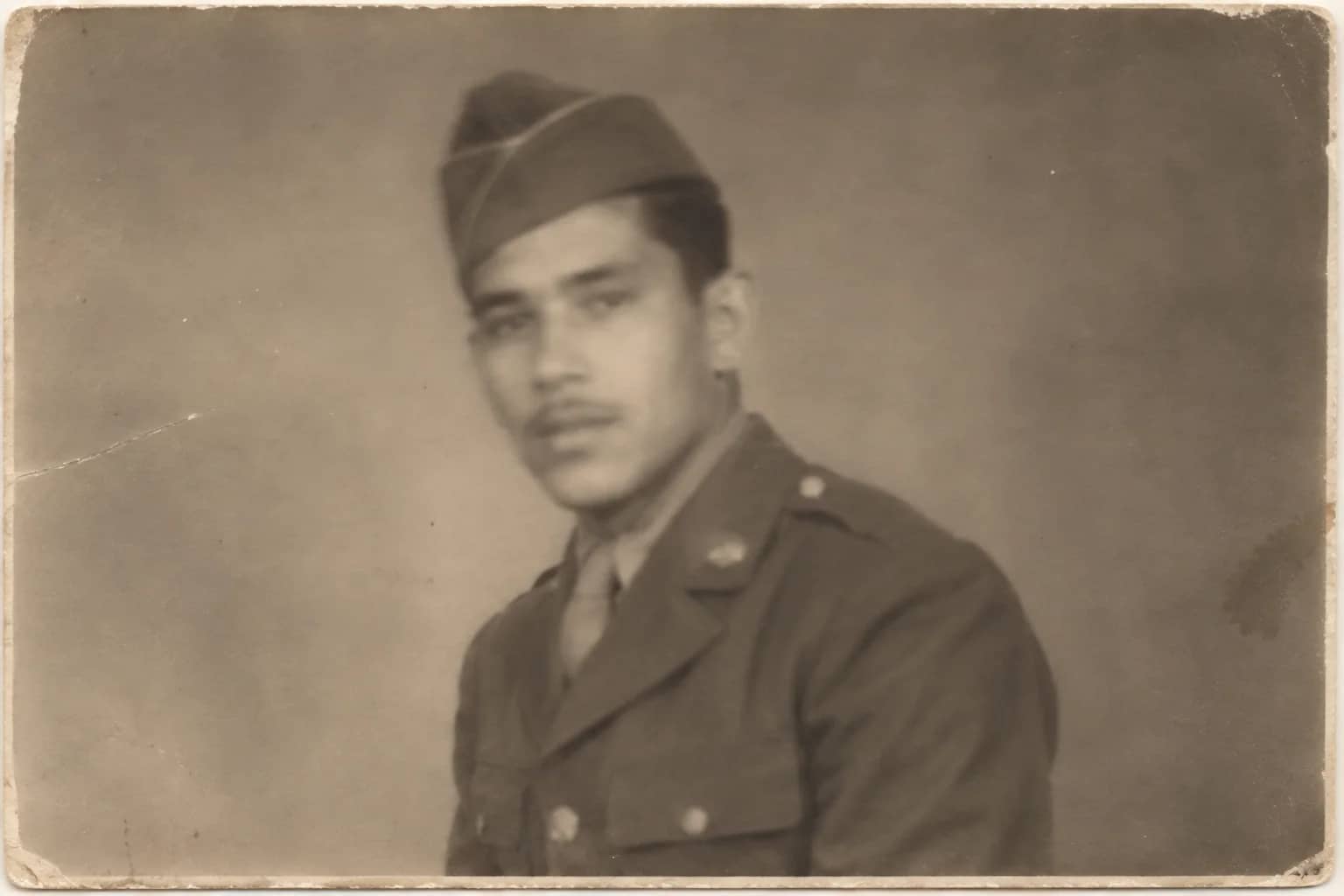
Face Restoration
Recover eyes, skin and hair in soft or tiny faces while keeping the person
Grain & Noise Remover
Quiet heavy grain, sensor noise, JPEG blocks and halftone dots, keep the texture
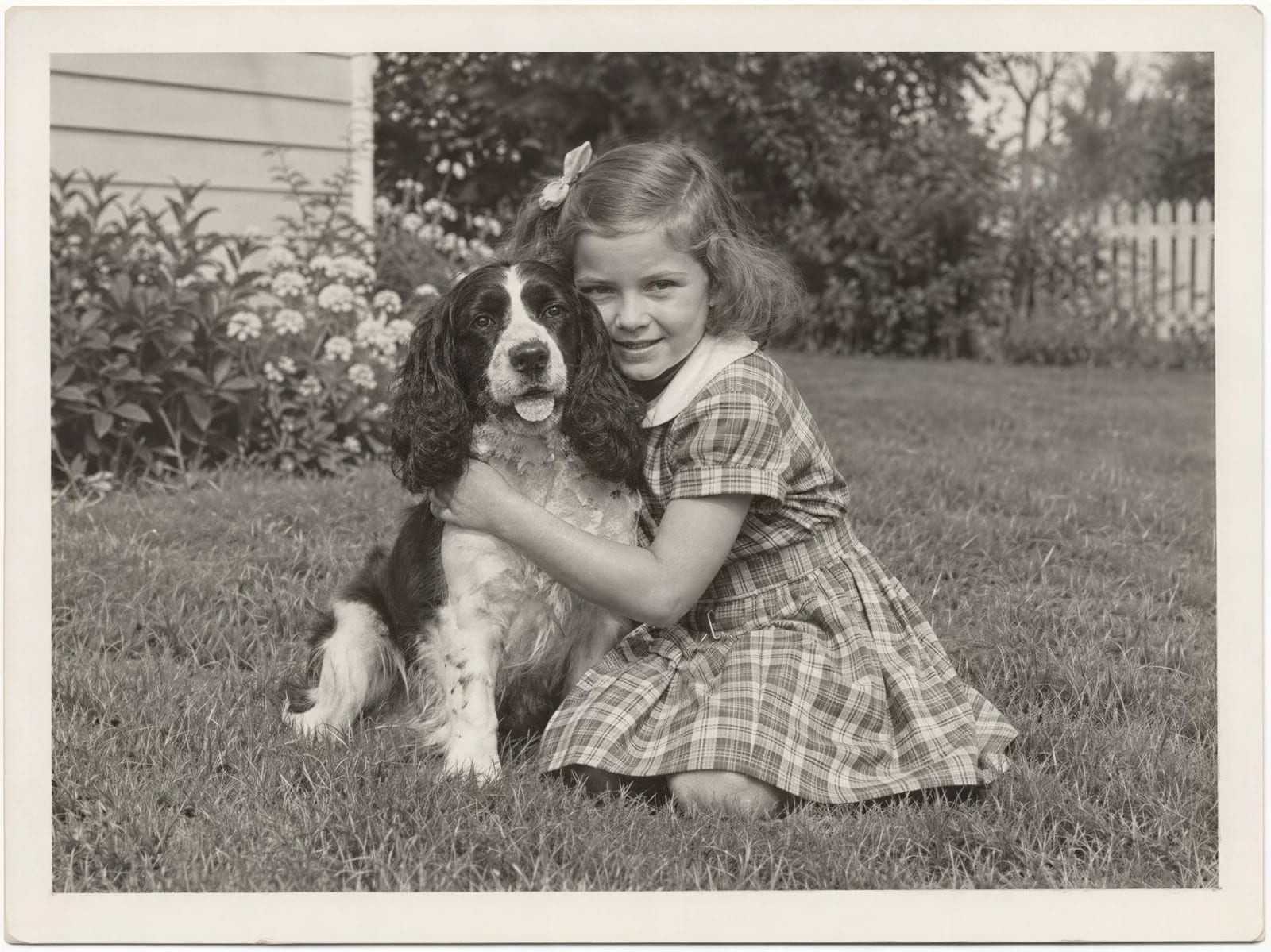
Image Upscaler
Enlarge a restored photo for reprinting, from a small scan up to 32 megapixels
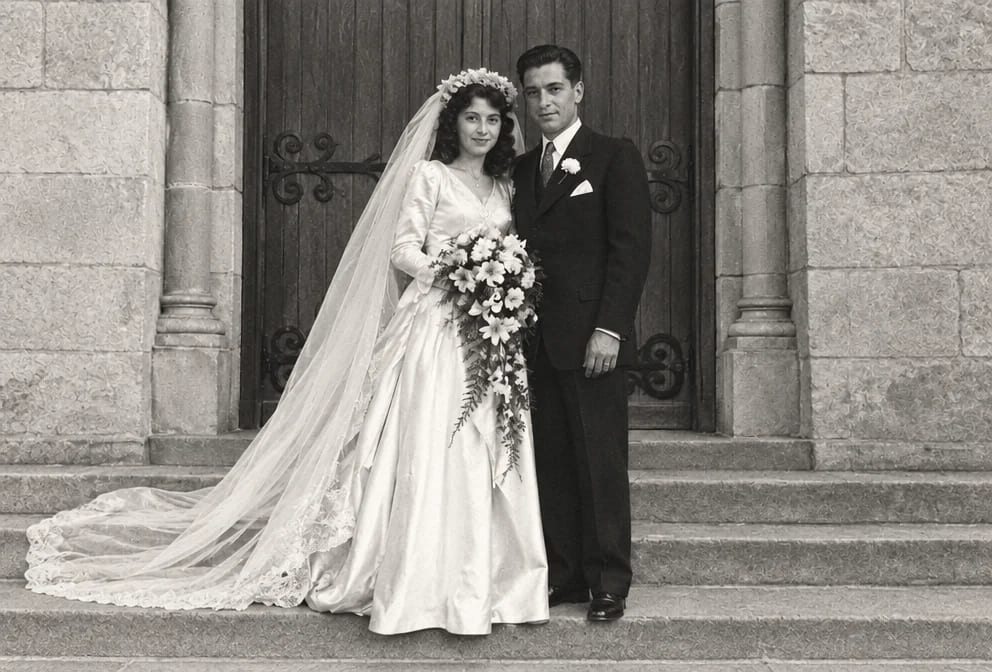
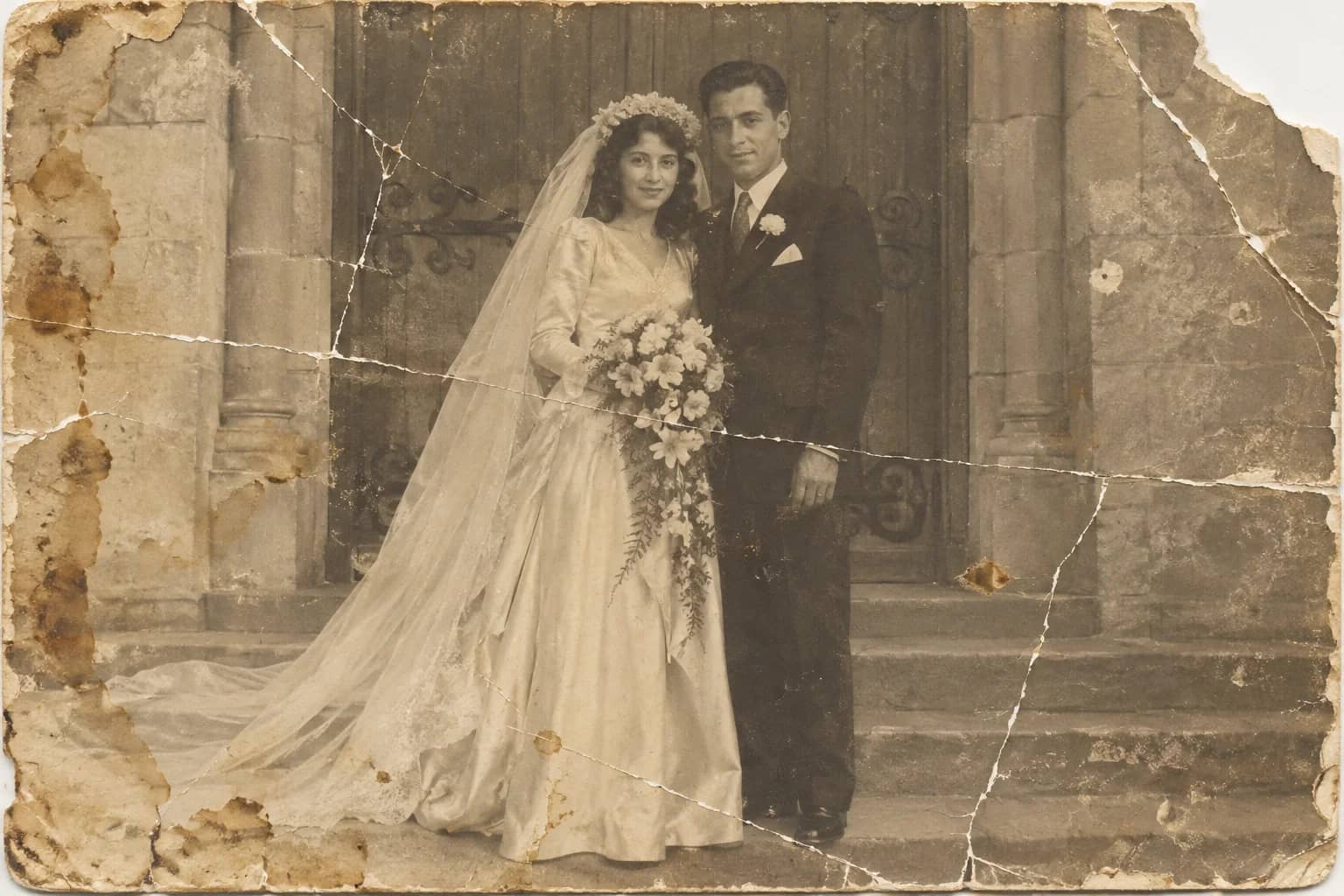
Photo Restoration
One pass that repairs damage, lifts fading and sharpens faces in an old photo