Repair
Scratch & Tear Repair
Close scratches, tears, creases and cracked emulsion without touching the rest
4 free credits to start, enough for one Standard pass of this tool.
- 1Upload the damaged print, pieces pushed together if it is torn
- 2Pick the damage type and say where the mark is if it is easy to miss
- 3Download the repaired print or pass it on to another tool
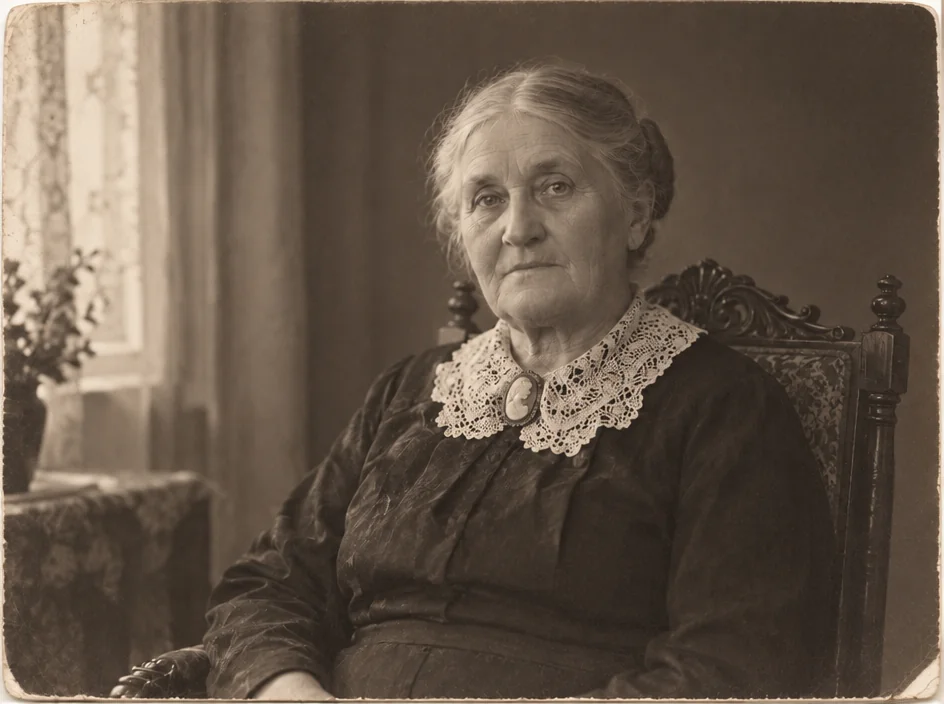
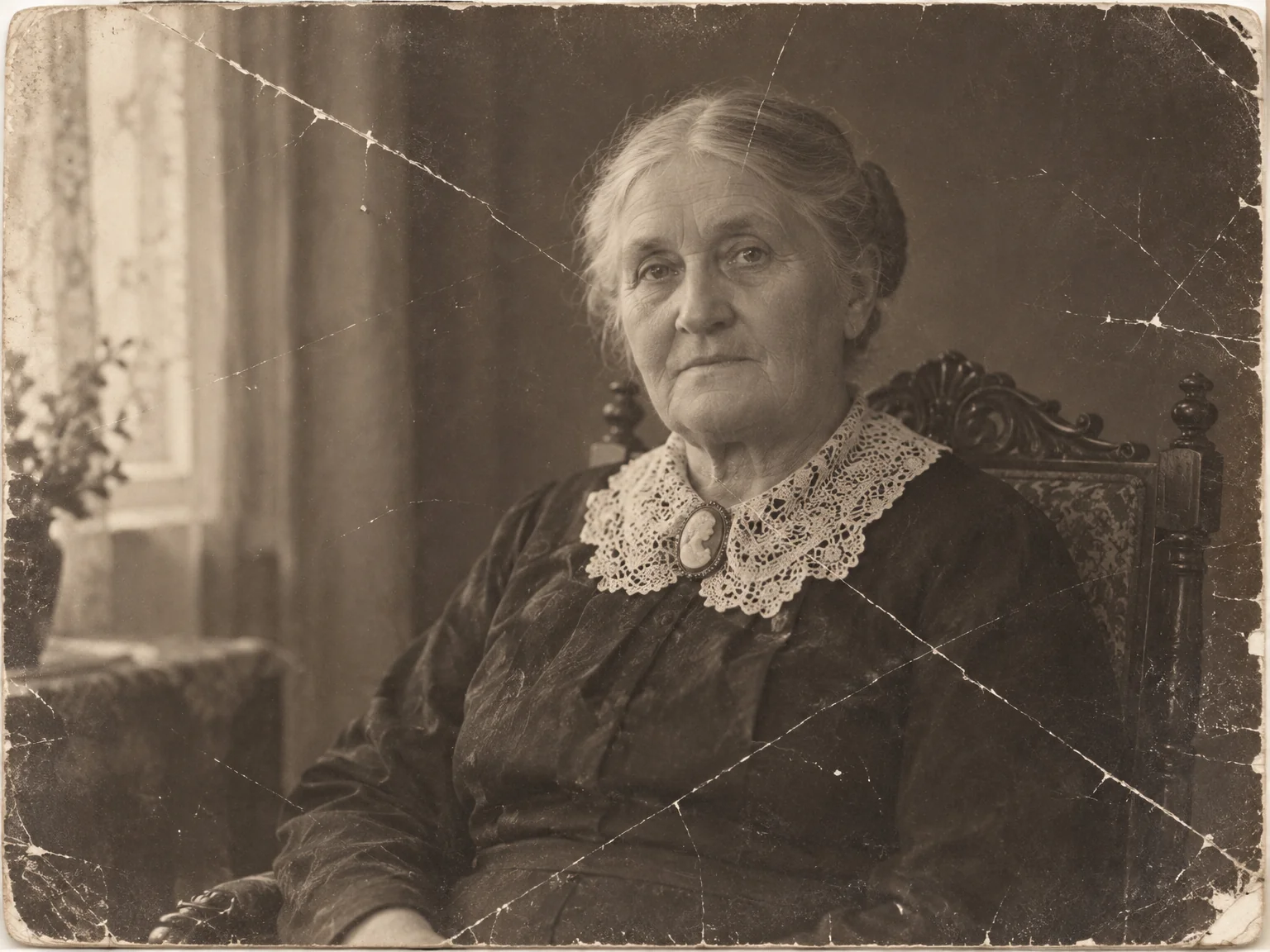
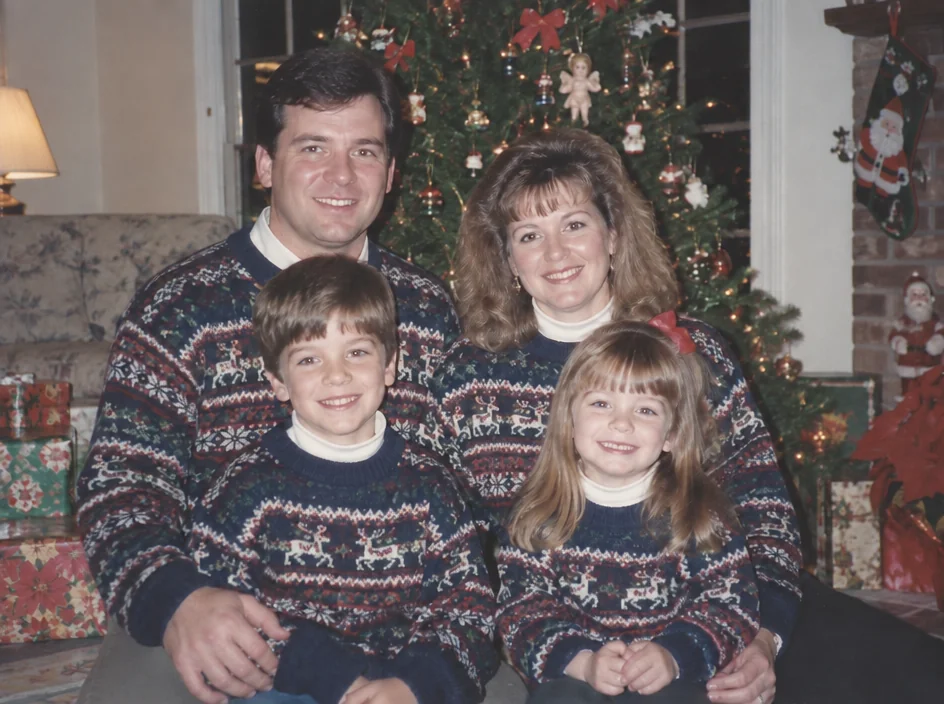
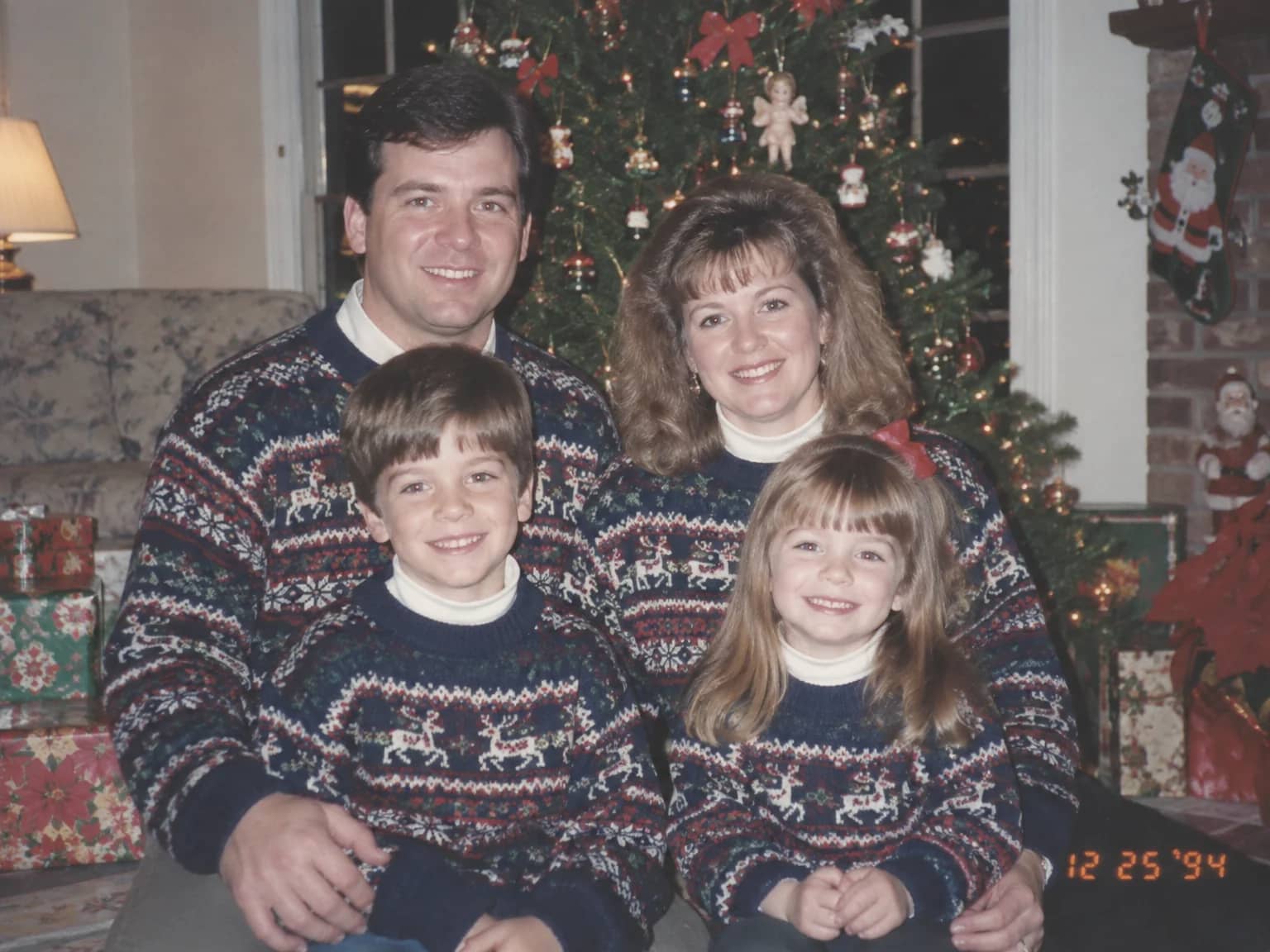
Restored by this tool from the original. Drag the handle to compare before and after.
Some prints are in good shape apart from one injury. The tonality is fine, the faces are sharp, the color is what it was, and then there is a tear across the corner or a white crease line where the emulsion cracked along a fold. This tool is for that print. It concentrates on the physical damage and leaves everything else as it is: the grain stays, the contrast stays, the slight warmth of the paper stays. What was underneath the scratch or the tear is rebuilt from the surrounding image so that the repair reads as part of the original print rather than a patch laid over it. It suits prints from every decade, from a cracked cabinet card to a creased 1990s snapshot.
The Damage type select narrows the AI's attention. Scratches covers hairline lines and emulsion scuffs, the kind left by a print sliding around a drawer for forty years. Tears and creases handles folds and the pale lines that appear where a print was bent. Water stains is for tide marks and blotches. Mold and foxing is for mildew patches and the brown freckling that appears on older paper. Cracked emulsion is for the crazed, flaking surface of prints that dried out badly, and Tape & glue for the sticky marks that album pages and old repairs leave behind. Everything lets the AI address whatever it finds. The notes box is for pointing at the damage, for example a tear through the top right corner, which helps when the mark is small or sits in a busy area.
One thing worth knowing about a tear: the two halves of the print rarely line up when they are scanned, so scan or photograph the print with the pieces pushed together as closely as you can. Where a piece is missing altogether, the Missing Parts Filler is the better tool, because it is built to continue the scene. Results come back in seconds at the size and shape of your upload, and you can chain straight into fading correction or sharpening afterwards. Because the tool leaves tone alone, a print that comes back repaired will still carry its original warmth or its original fade, which is deliberate: the decision about color is yours to make afterwards, once the physical damage is out of the way and you can see the picture clearly.
Credits per pass
| Tier | Credits | Good for |
|---|---|---|
| Standard | 4 | The print at screen size, quick repairs |
| Pro | 12 | More of the scan is sent, finer faces and texture |
| Max | 44 | The full scan, every readable detail kept for print |
What you can tell it
- Damaged print
- Damage typeEverythingScratchesTears and creasesWater stainsMold and foxingCracked emulsionTape & glue
- Where is it? (optional)
- Result · Same ratio as the original
In the Studio
- Pass the result into any other tool without uploading again
- Standard, Pro and Max tiers, with the cost shown before you run
- Every restoration kept in your library beside its original
- Upscale to 32 MP for framing, or make a short moving version
About this tool
Often used next
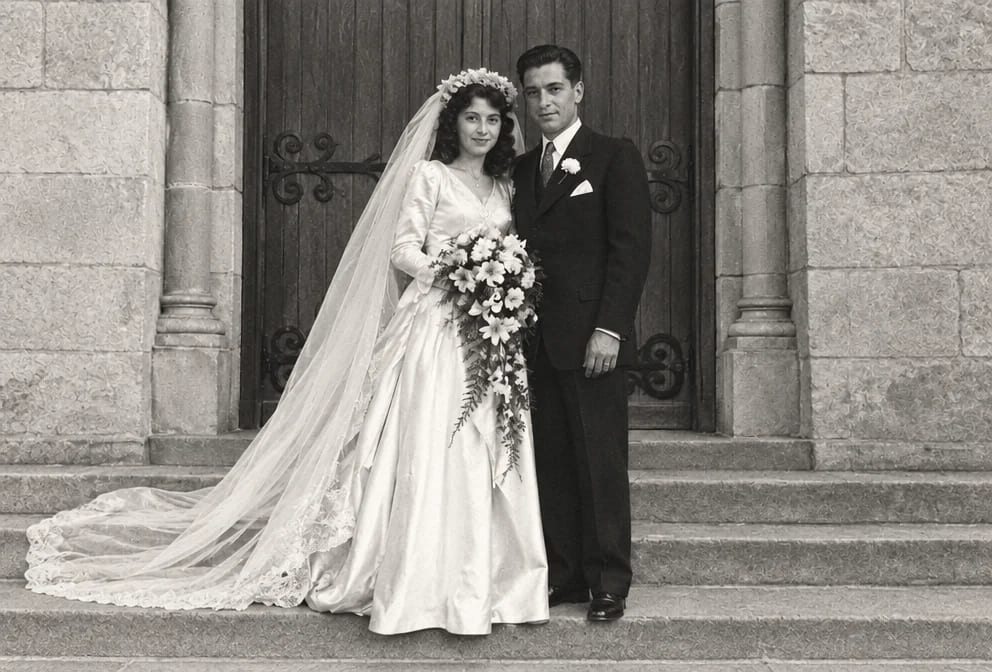
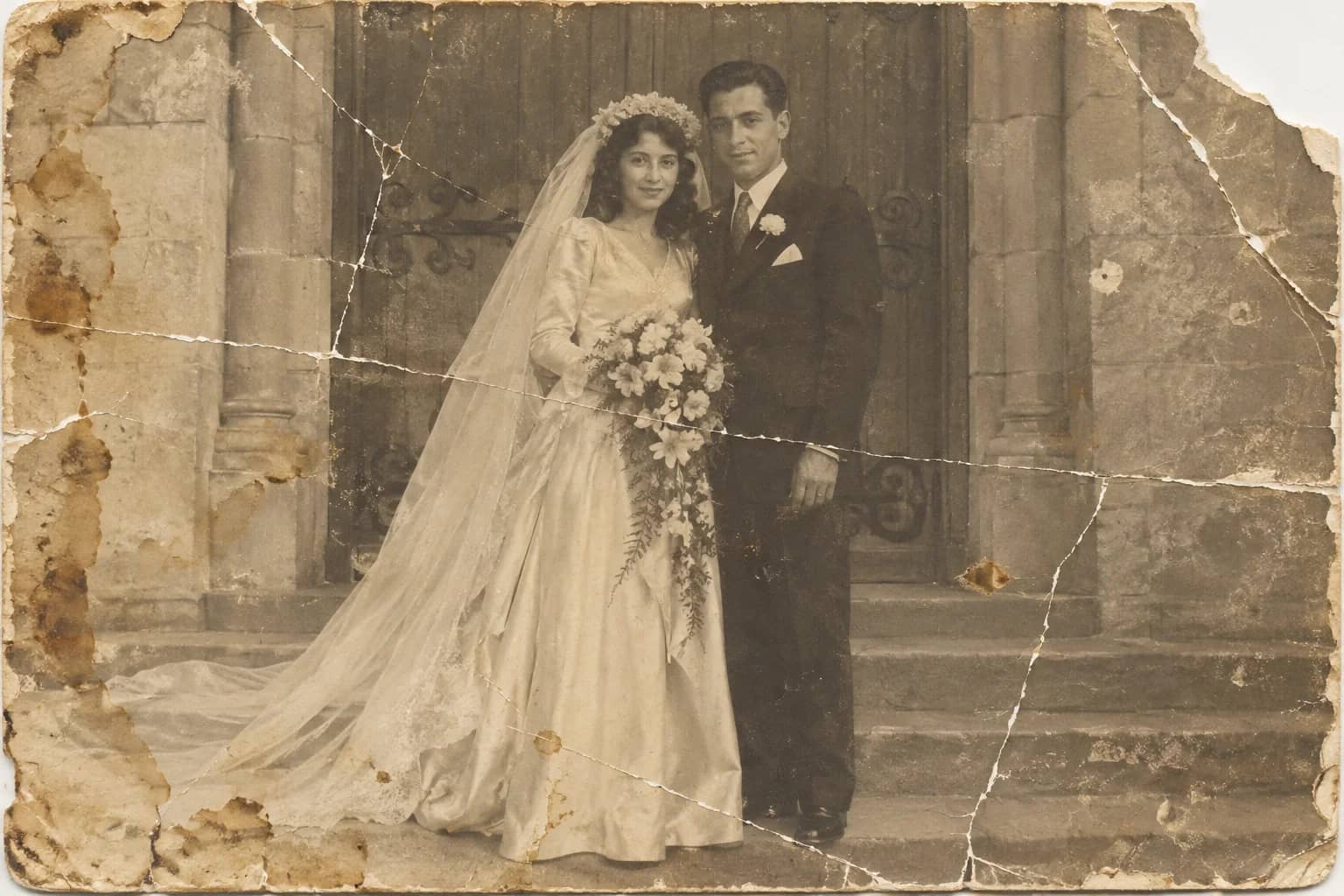
Photo Restoration
One pass that repairs damage, lifts fading and sharpens faces in an old photo
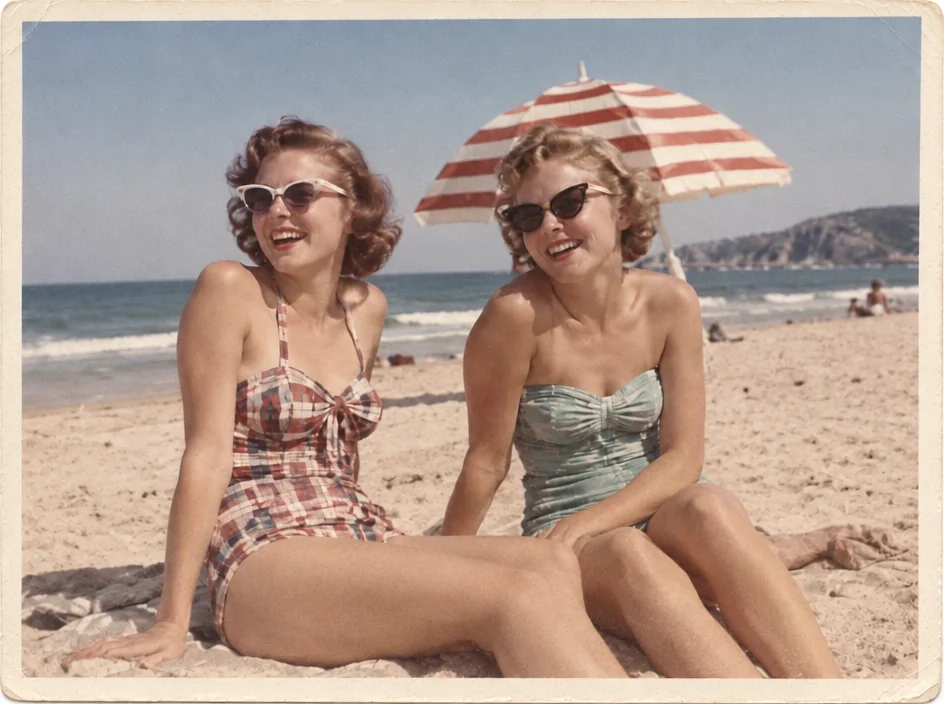
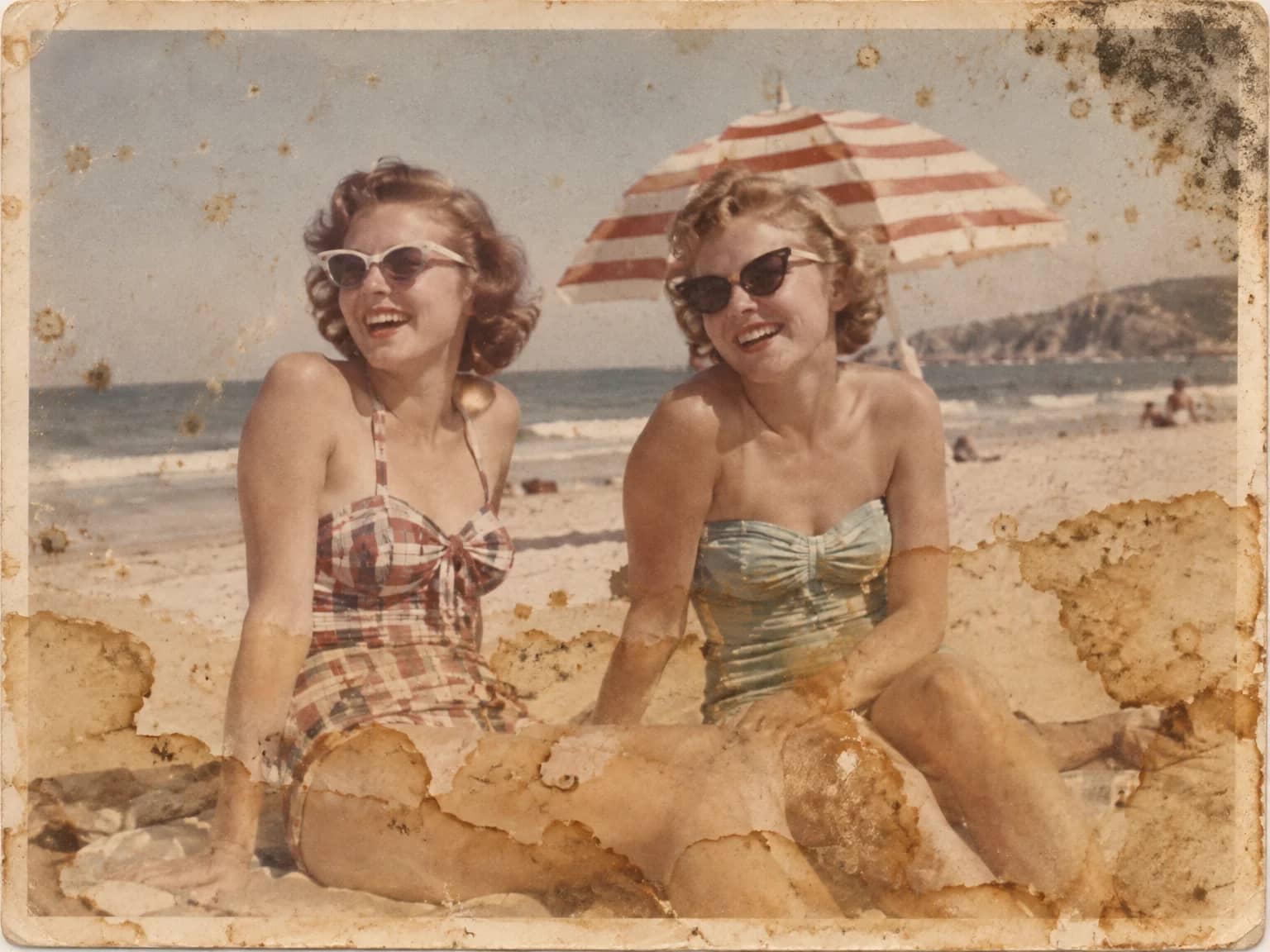
Stain & Spot Remover
Lift water stains, mold, foxing, dust, ink and tape residue from an old print
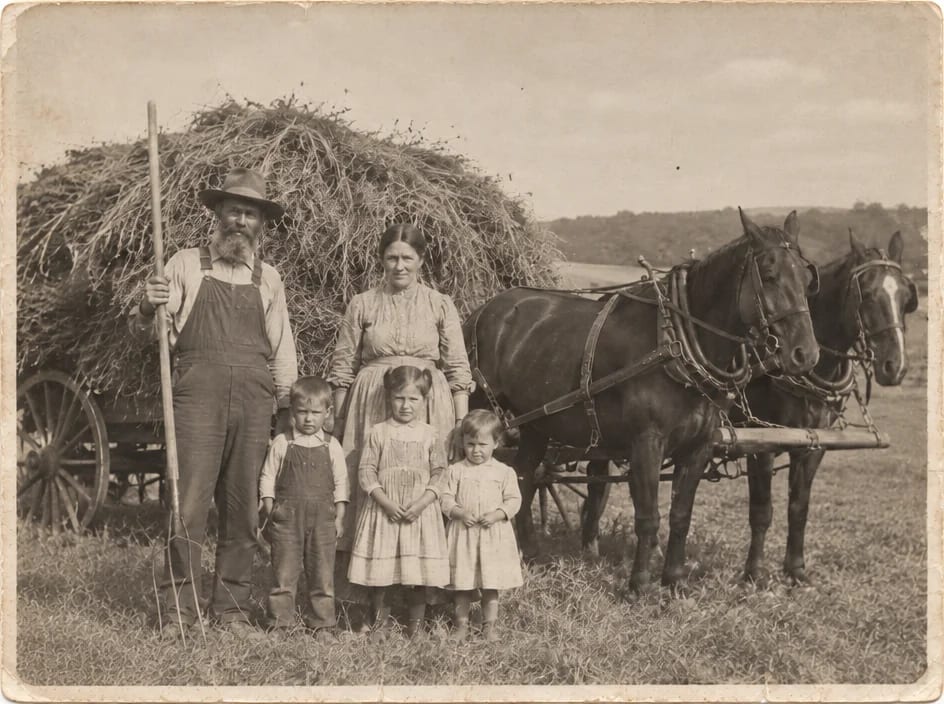
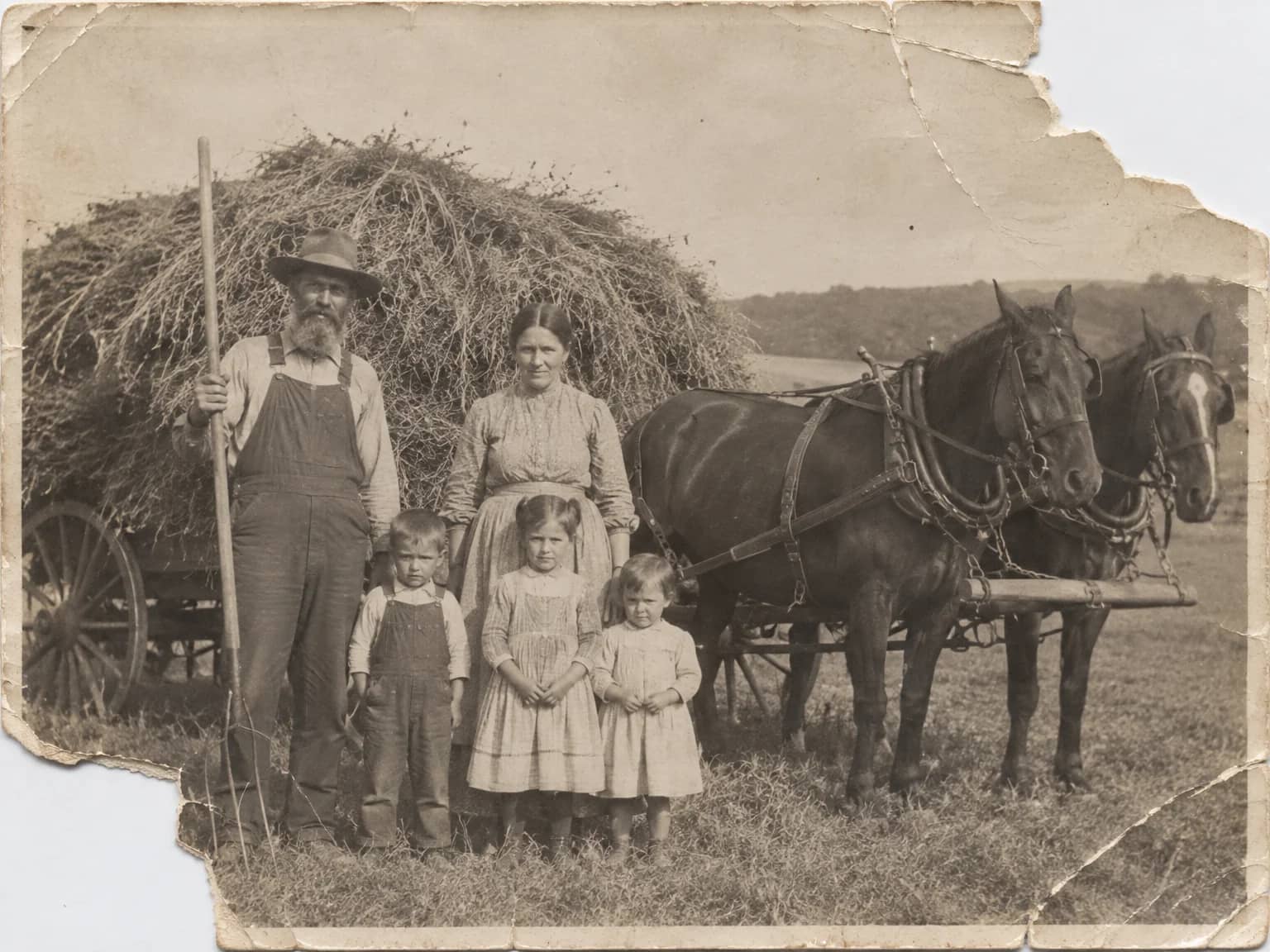
Missing Parts Filler
Rebuild a torn-off corner or a lost edge by continuing the surviving scene
Date Stamp & Writing Remover
Take the orange date stamp, pen marks, stickers and tape off the picture