People
Crop a Person from a Group Photo
Lift one person out of a crowd into a restored head-and-shoulders portrait
4 free credits to start, enough for one Standard pass of this tool.
- 1Upload the group photo at the largest size you have
- 2Describe who to crop, then choose a background and a portrait ratio
- 3Download the single portrait and compare it against other photos of them
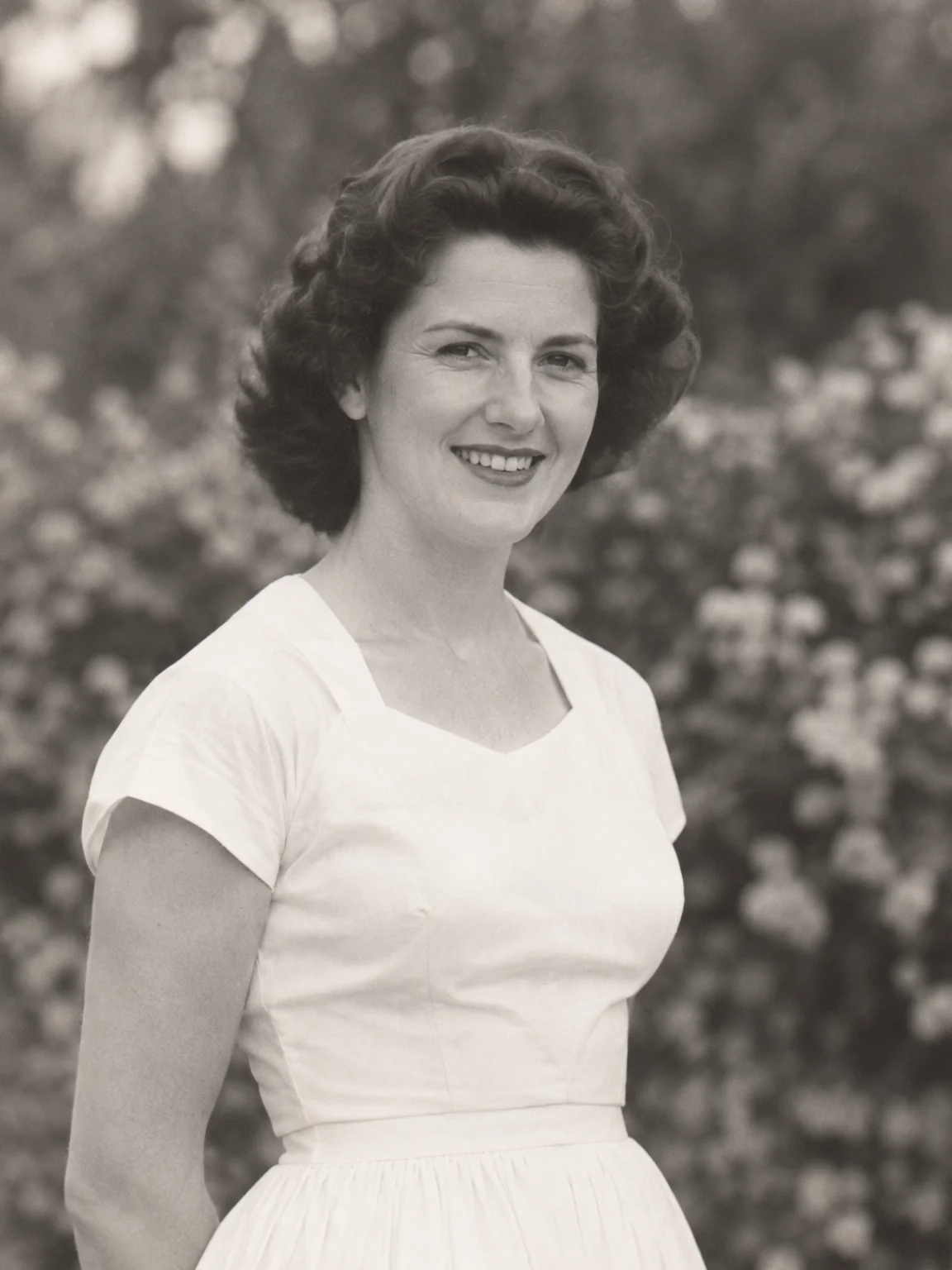
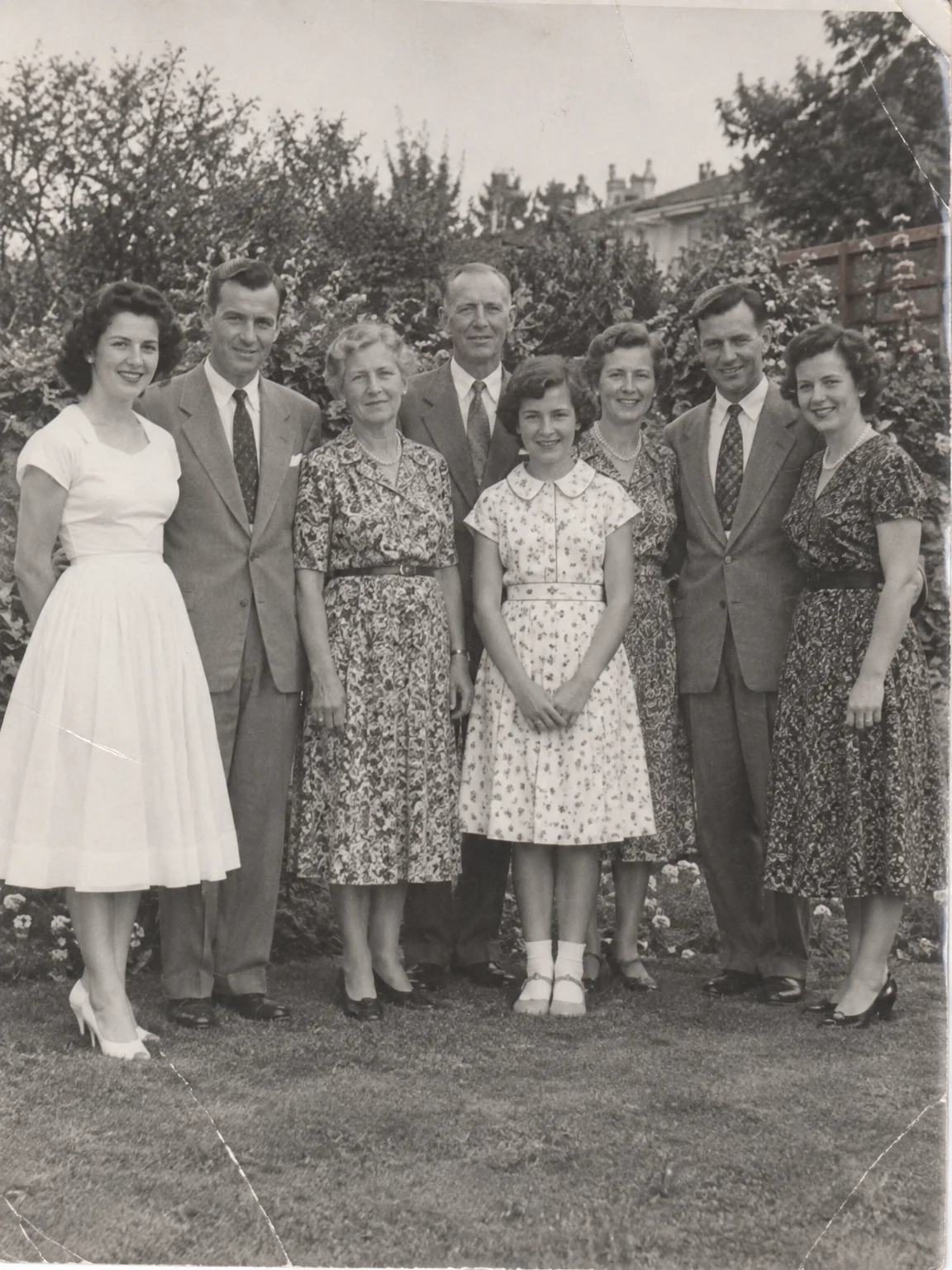
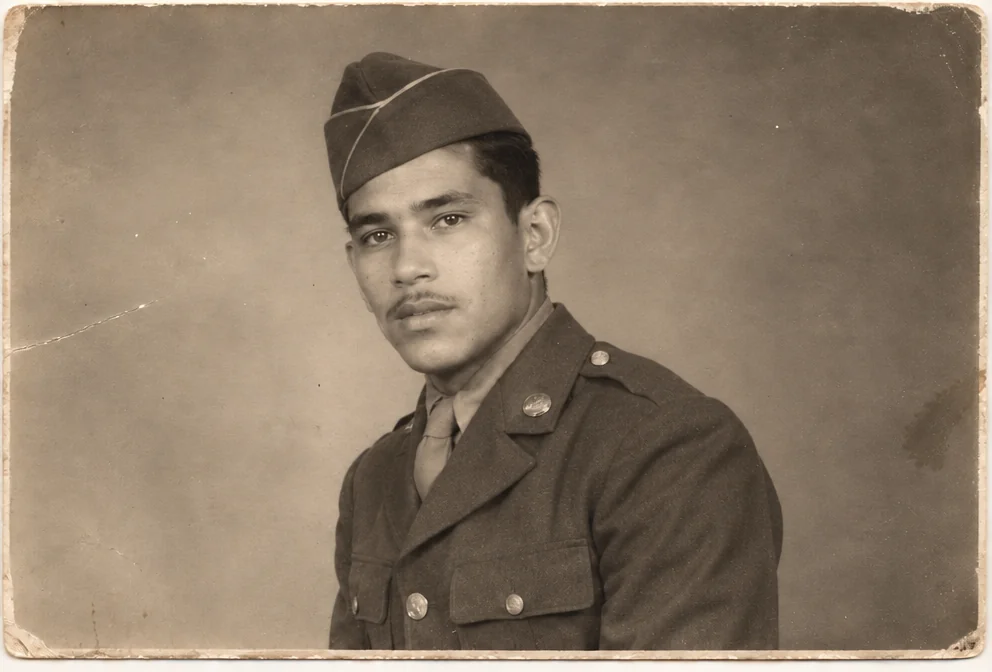
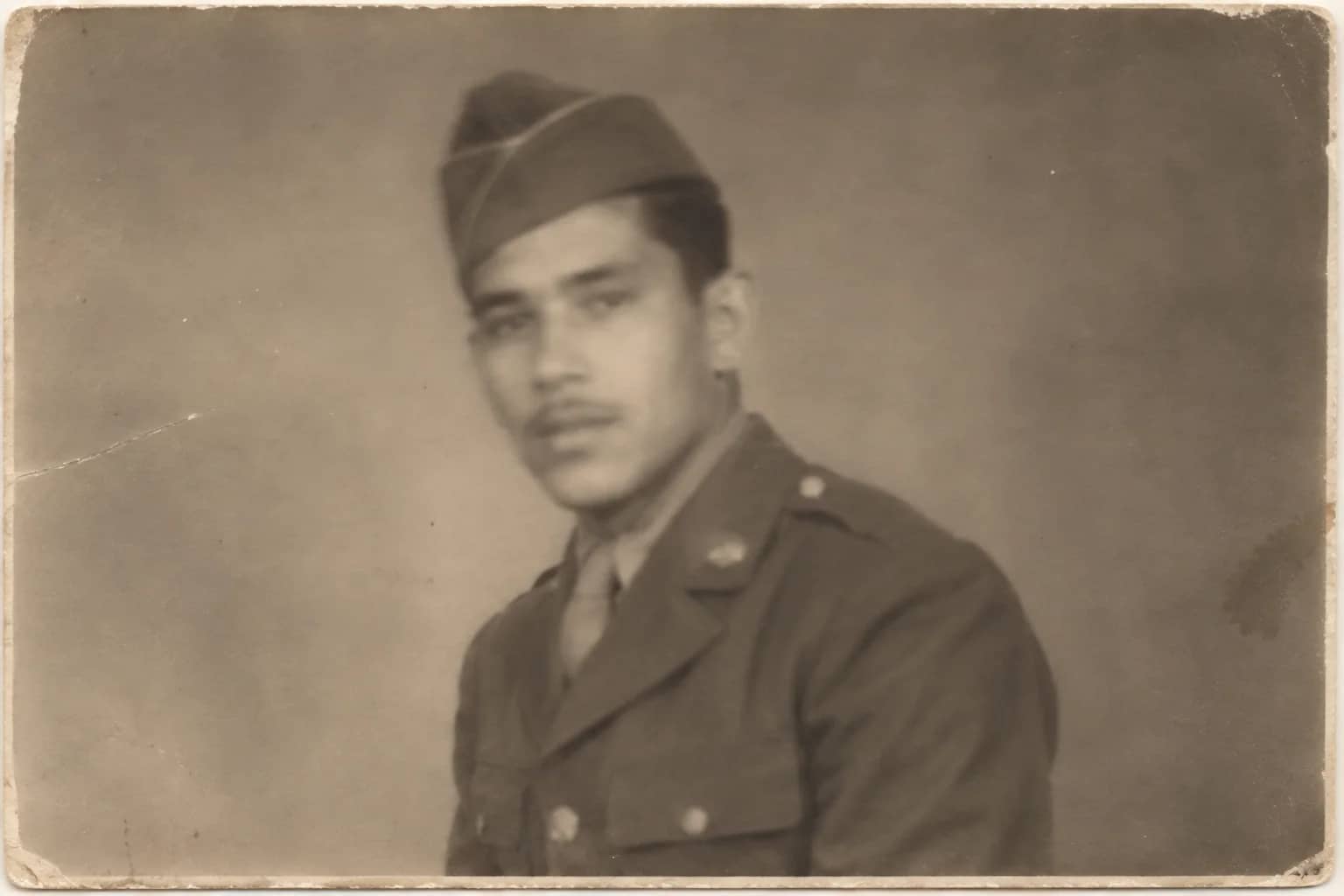
Restored by this tool from the original. Drag the handle to compare before and after.
Sometimes the only photograph of a person is a group one. A wedding line-up, a works outing, a school class, a family gathered on the steps for a reunion in 1962, and somewhere in the third row, small and a little out of focus, is the great-aunt you are researching. This tool produces a single portrait of that one person. It crops to a head-and-shoulders or waist-up framing, restores and sharpens their face and clothing, and tidies away the neighboring arms and shoulders that intrude into a tight crop. The result is a portrait that could sit in a frame or a family tree on its own. It is also the practical way to get a passport-style picture of someone who is only ever in the back row.
The Who box is required and does the most work. Describe the person by position and something visible, such as the woman on the far left in the white dress, or the boy in the front row holding the ball, and the AI finds them. The Background select then decides what surrounds them. Keep original leaves the scene behind them as it was, which is right when the setting matters. Soft blur softens the background so the face stands out, and it hides the fact that a neighbor's shoulder was once there. Studio grey replaces the background with a plain, softly lit grey backdrop for a formal portrait. The Portrait ratio select sets the output shape; 3:4 is the default, and 4:5, 1:1 and the landscape options are there for frames and print sizes.
Because the face is being enlarged from a small part of the frame, upload the biggest scan you have. A face that was a fingernail across on the print is a plausible reconstruction once it fills a portrait, so compare it against any other photo of the person. Results come back in seconds and chain naturally into the Memorial Portrait tool or the upscaler. Run the same group photo several times with a different description each time and you have a set of individual portraits from one print, which is a common way of populating a family tree from a single reunion photograph. Each portrait keeps the clothing and expression that person had in the group, so a smile stays a smile and a uniform stays a uniform.
Credits per pass
| Tier | Credits | Good for |
|---|---|---|
| Standard | 4 | The print at screen size, quick repairs |
| Pro | 12 | More of the scan is sent, finer faces and texture |
| Max | 44 | The full scan, every readable detail kept for print |
What you can tell it
- Group photo
- Who?
- BackgroundKeep originalSoft blurStudio grey
- Portrait ratio3:44:51:12:35:44:33:2
- Result · Result 3:4
In the Studio
- Pass the result into any other tool without uploading again
- Standard, Pro and Max tiers, with the cost shown before you run
- Every restoration kept in your library beside its original
- Upscale to 32 MP for framing, or make a short moving version
About this tool
Often used next
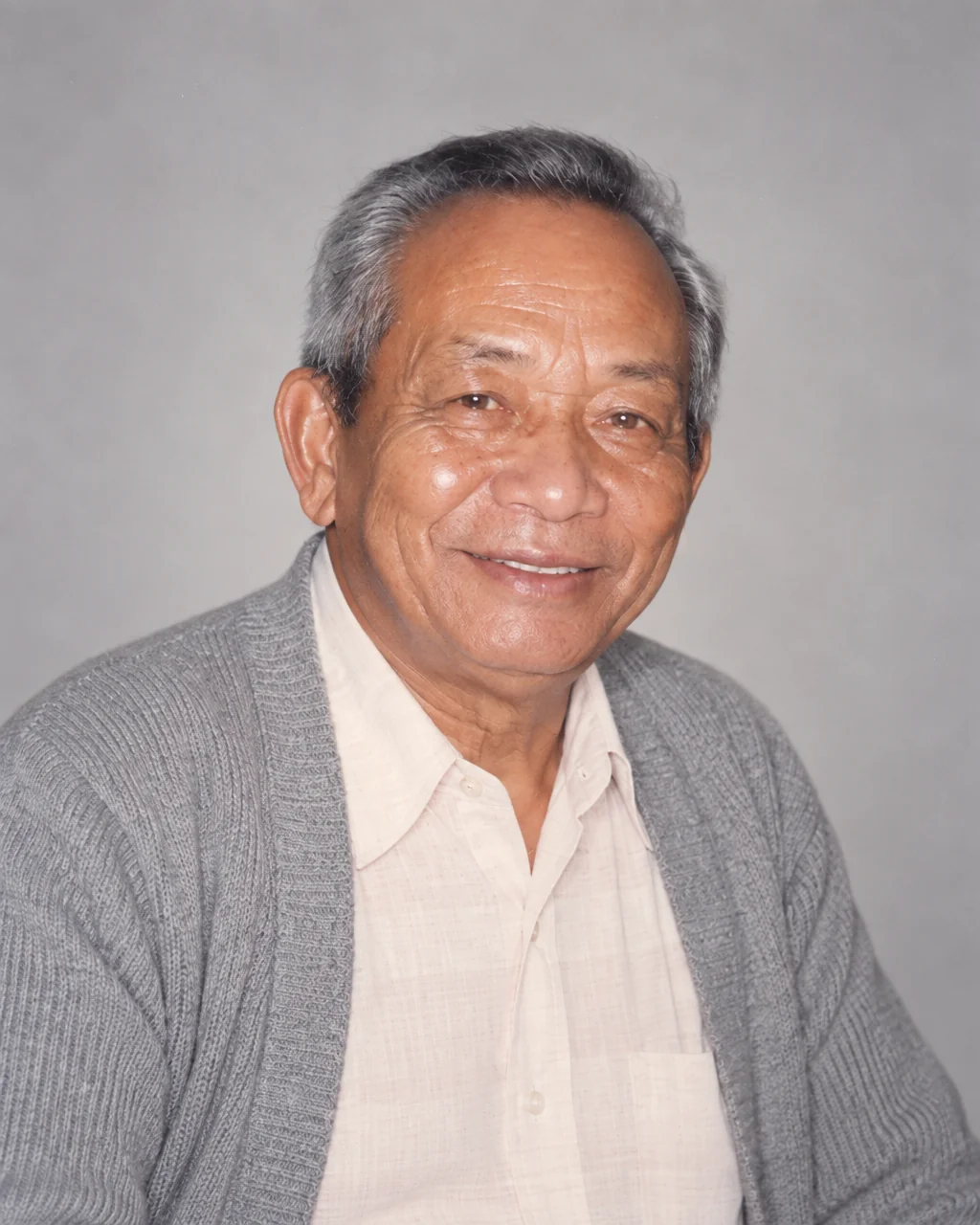
Memorial Portrait
A gentle, restored head-and-shoulders portrait for a service, card or frame
Face Restoration
Recover eyes, skin and hair in soft or tiny faces while keeping the person
Remove a Person
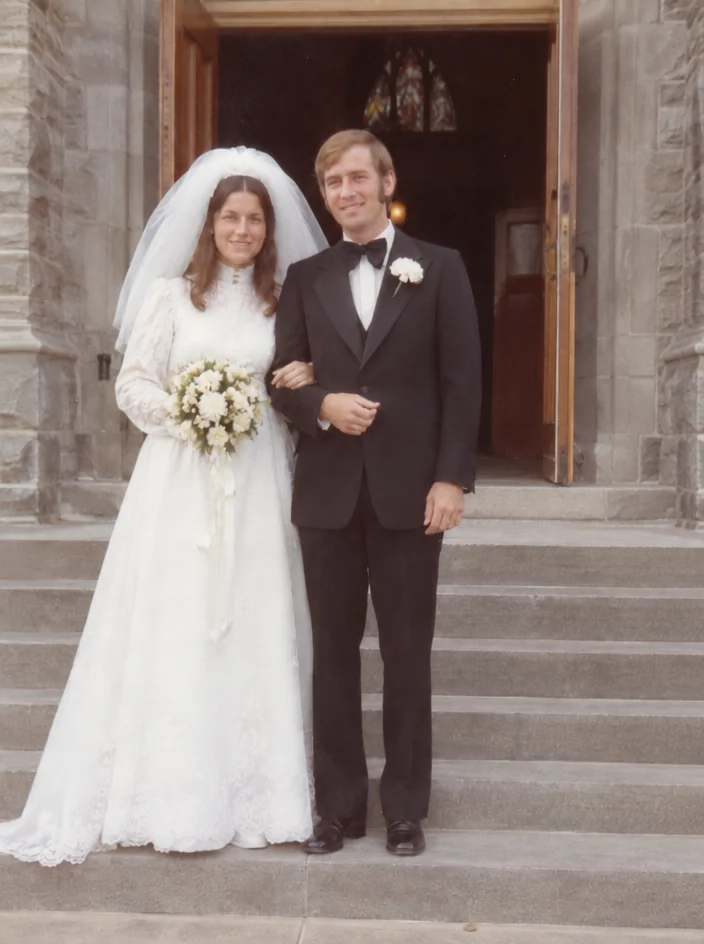
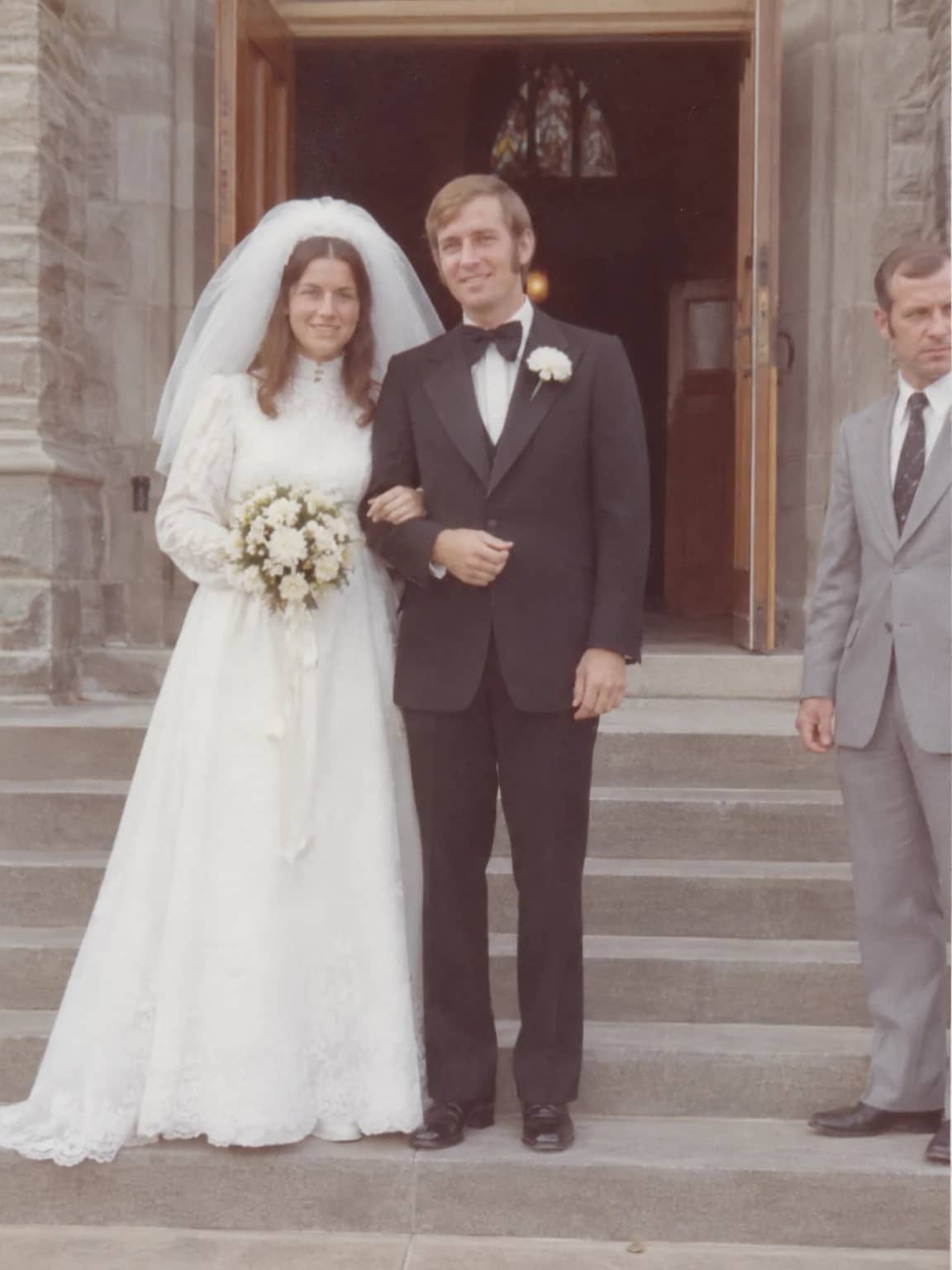
Take one person out of a photo and continue the scene behind them
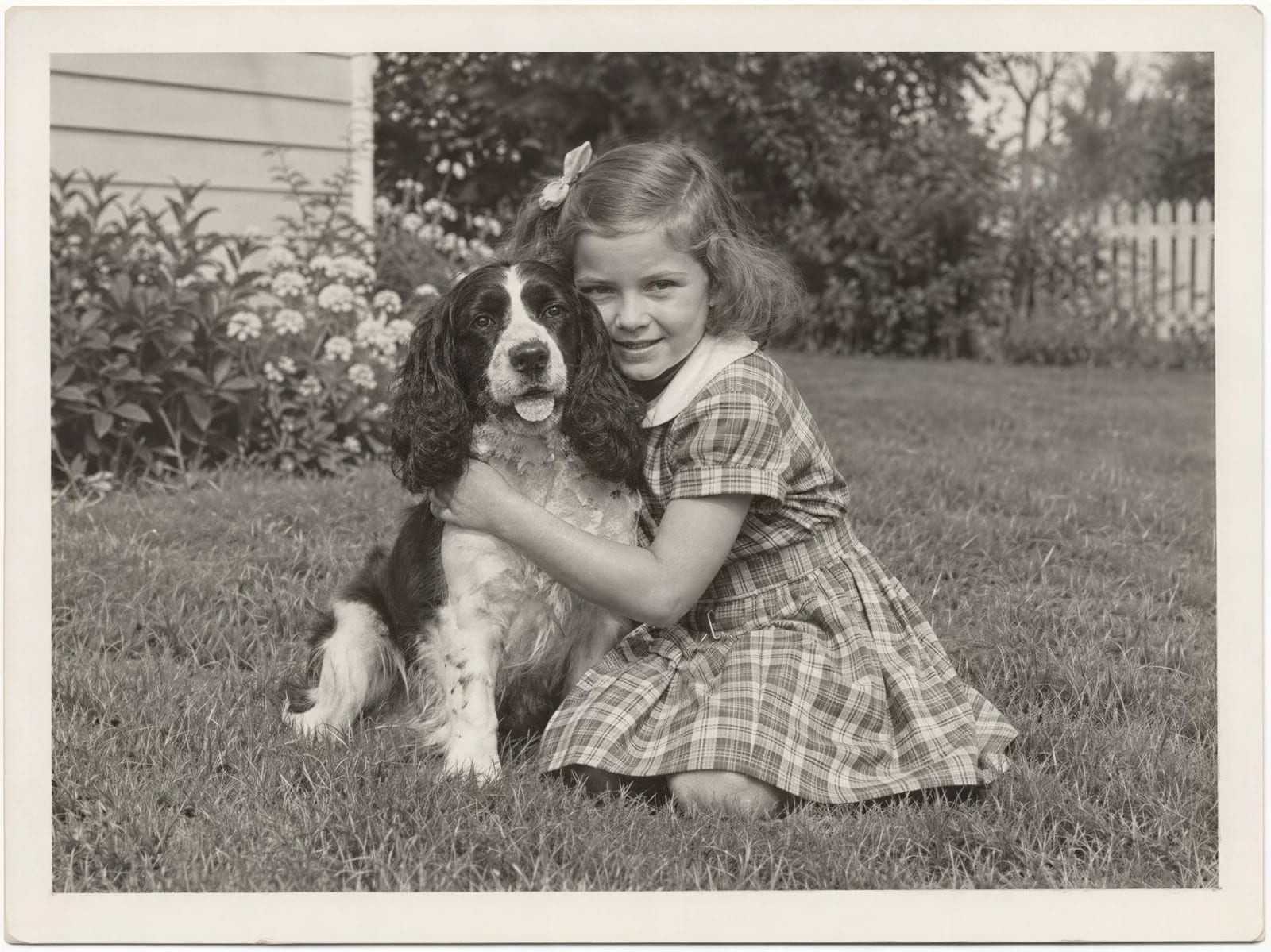
Image Upscaler
Enlarge a restored photo for reprinting, from a small scan up to 32 megapixels