People
Remove Objects
Remove the lamp post, the car, the clutter, and keep every person in place
4 free credits to start, enough for one Standard pass of this tool.
- 1Upload the photo with the distracting object
- 2Describe what should go and where it is
- 3Download the tidied photo or carry on with another tool
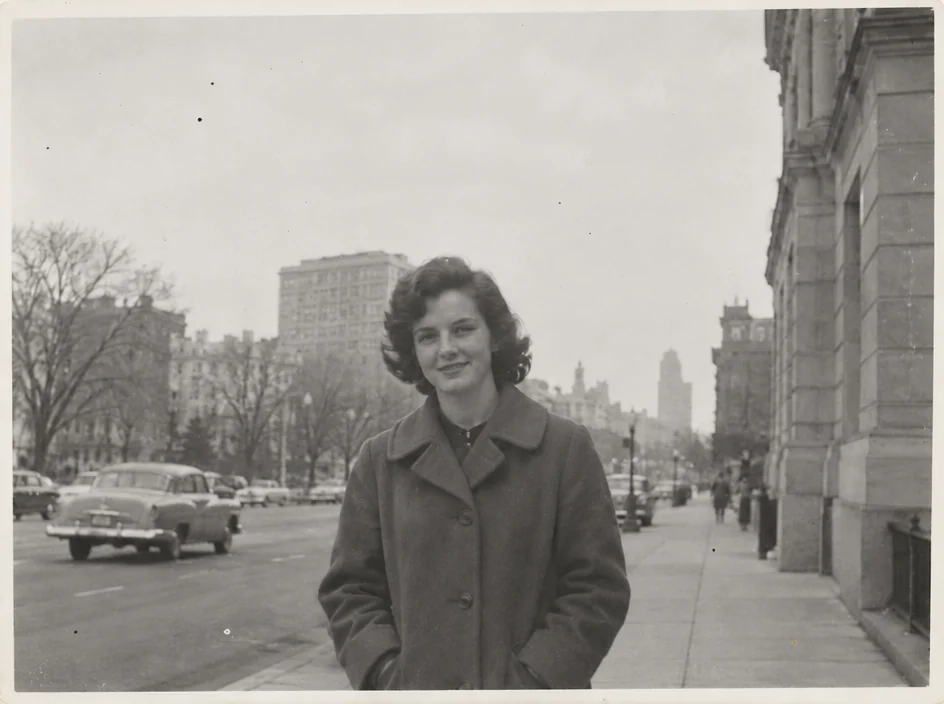
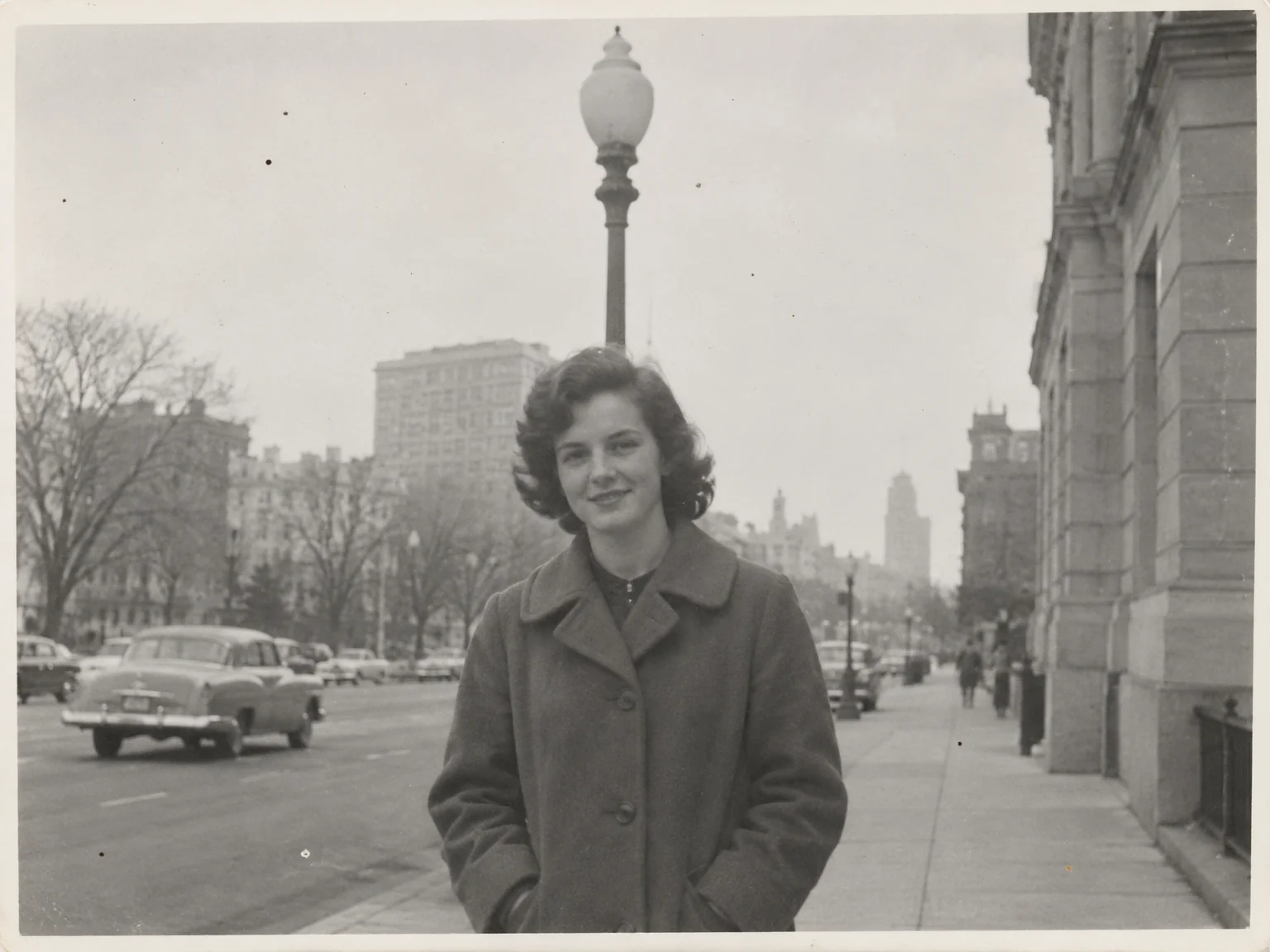
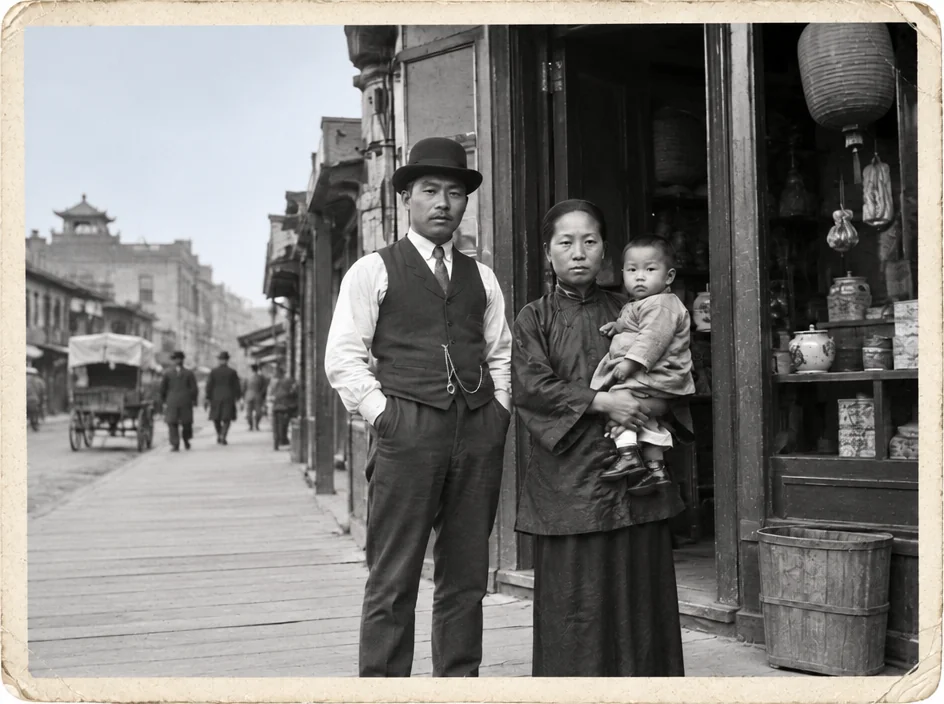
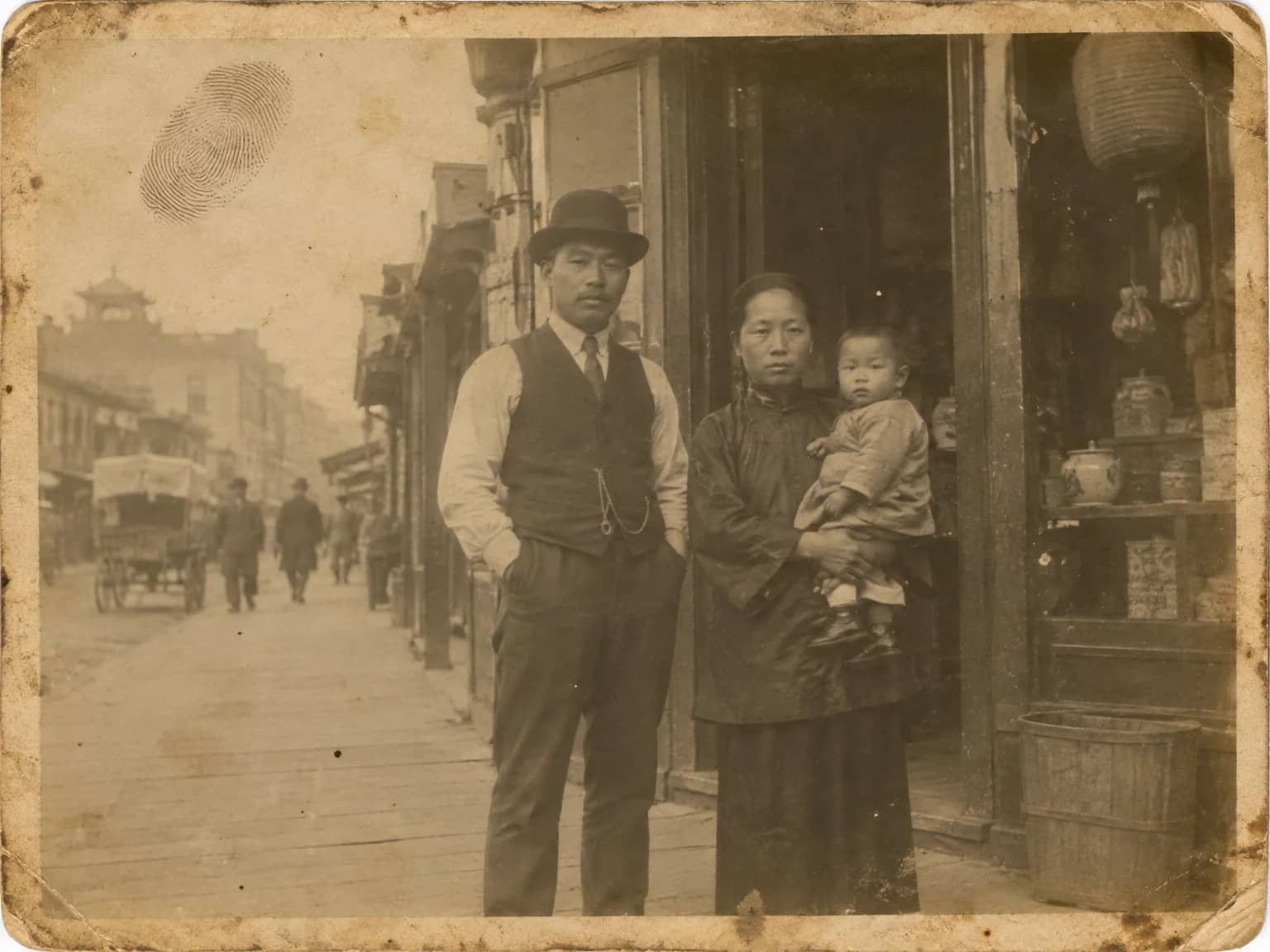
Restored by this tool from the original. Drag the handle to compare before and after.
Old snapshots were composed in a hurry, and the things that spoil them are usually small: a lamp post growing out of someone's head, a parked car cutting across the bottom of a garden portrait, a bin beside the church door, a stray hand at the edge of the frame, a photographer's shadow on the lawn. Remove Objects takes the described thing out and fills the area with the surrounding scene, so the hedge, the sky or the lawn continues where the object was. Every person in the photograph is kept as they were, and the framing does not change. It is a tidying tool rather than a rebuilding one, and it is at its best when what goes is incidental.
The What should go box is required and should be specific: the lamp post behind her head, the white van on the left, the cigarette in his hand, the date on the bottom right. Naming the position as well as the object helps when there are several similar things in the frame. There are no other settings. The AI reads the photograph, finds the described object, and continues whatever surrounds it, matching tone, grain and lighting so the fill sits in the print rather than on it. If several similar objects are present and only one should go, position words such as behind, left of or in front of settle which is meant. Naming a color as well as a position, such as the red car on the left, helps in a busy street scene.
Some removals are easier than others. An object against a plain or repeating background, such as sky, grass, a wall or a hedge, fills cleanly. An object in front of something detailed and unrepeated, such as a shop window or a crowd, has to be replaced with an inference about what was hidden, and that inference can be wrong in ways that show on close inspection. Objects that touch a person, a hand on a shoulder or a bag on a lap, involve rebuilding part of the person too, which is worth checking. Results follow the shape of the upload and return in seconds. A tidied photo keeps its original tone, grain and sharpness, and it is a good candidate for a Faded Photo Fixer or sharpening pass afterwards; the Studio can run those from the result without re-uploading.
Credits per pass
| Tier | Credits | Good for |
|---|---|---|
| Standard | 4 | The print at screen size, quick repairs |
| Pro | 12 | More of the scan is sent, finer faces and texture |
| Max | 44 | The full scan, every readable detail kept for print |
What you can tell it
- Photo with the object to remove
- What should go?
- Result · Same ratio as the original
In the Studio
- Pass the result into any other tool without uploading again
- Standard, Pro and Max tiers, with the cost shown before you run
- Every restoration kept in your library beside its original
- Upscale to 32 MP for framing, or make a short moving version
About this tool
Often used next
Remove a Person
Take one person out of a photo and continue the scene behind them
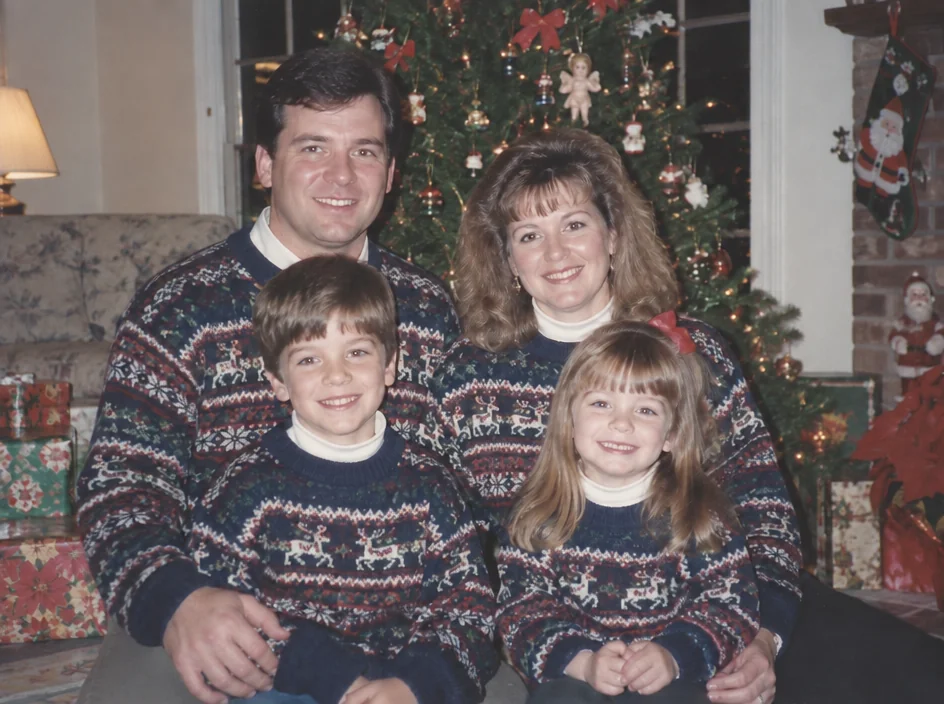
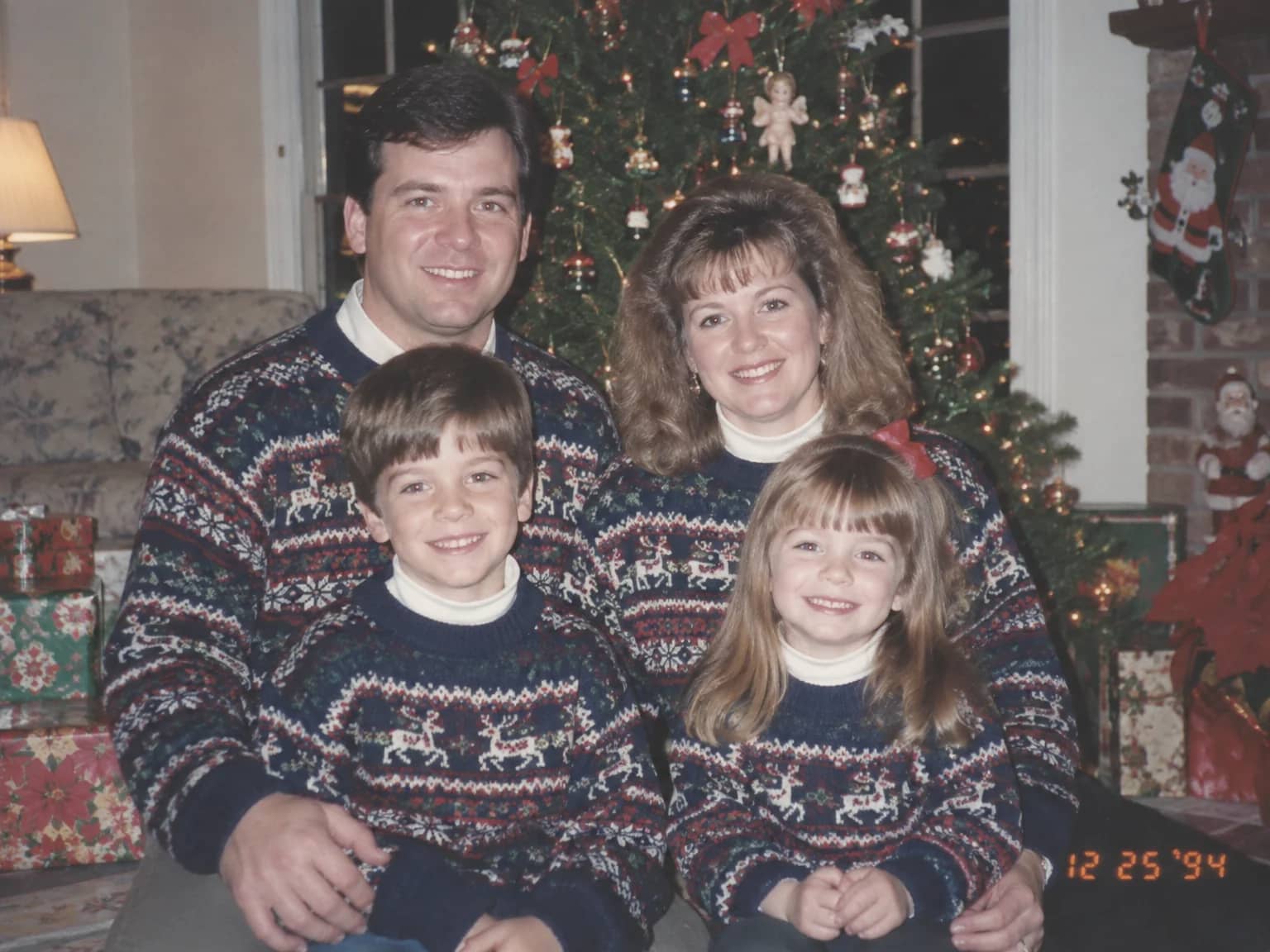
Date Stamp & Writing Remover
Take the orange date stamp, pen marks, stickers and tape off the picture
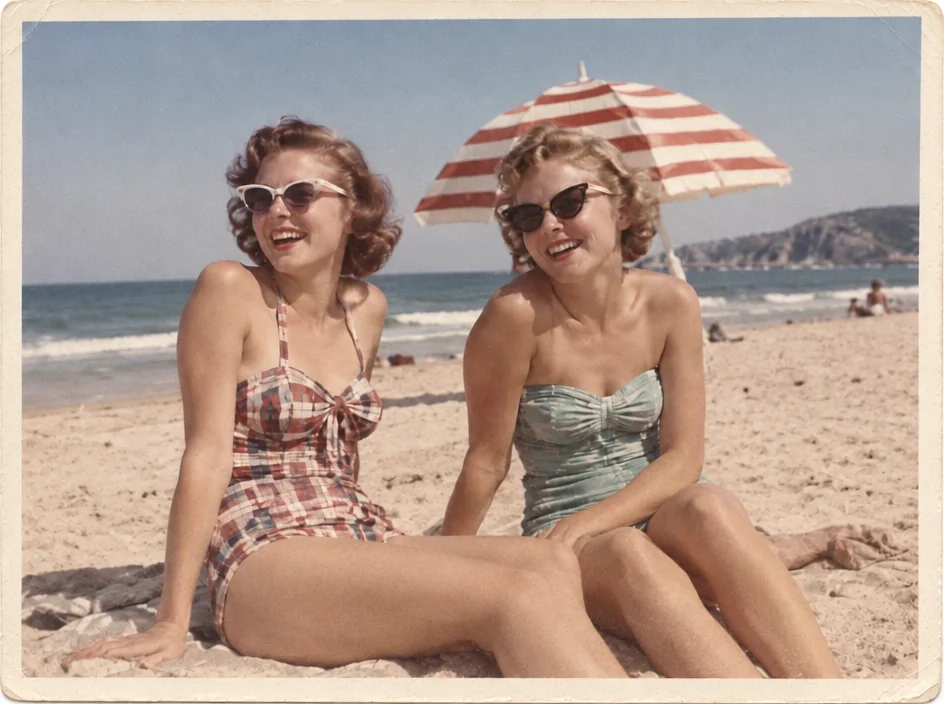
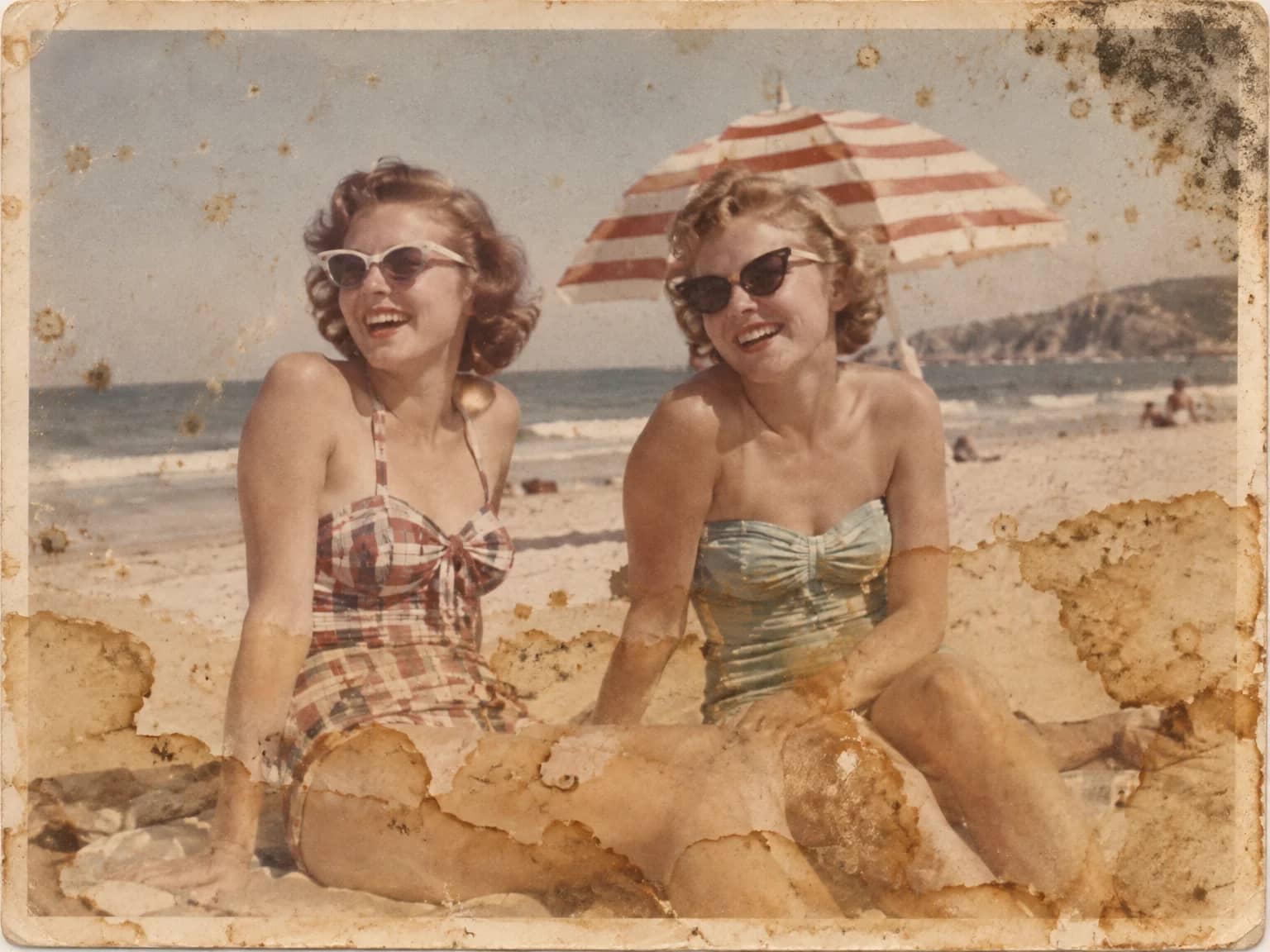
Stain & Spot Remover
Lift water stains, mold, foxing, dust, ink and tape residue from an old print
Describe the Repair
Say in plain words what needs fixing and let the AI carry it out