Tone
Black & White Converter
Turn a color photo into a considered black-and-white print, not a grey wash
4 free credits to start, enough for one Standard pass of this tool.
- 1Upload the color photo
- 2Choose a classic, high-contrast or soft conversion
- 3Download the black-and-white photo or continue into another tool
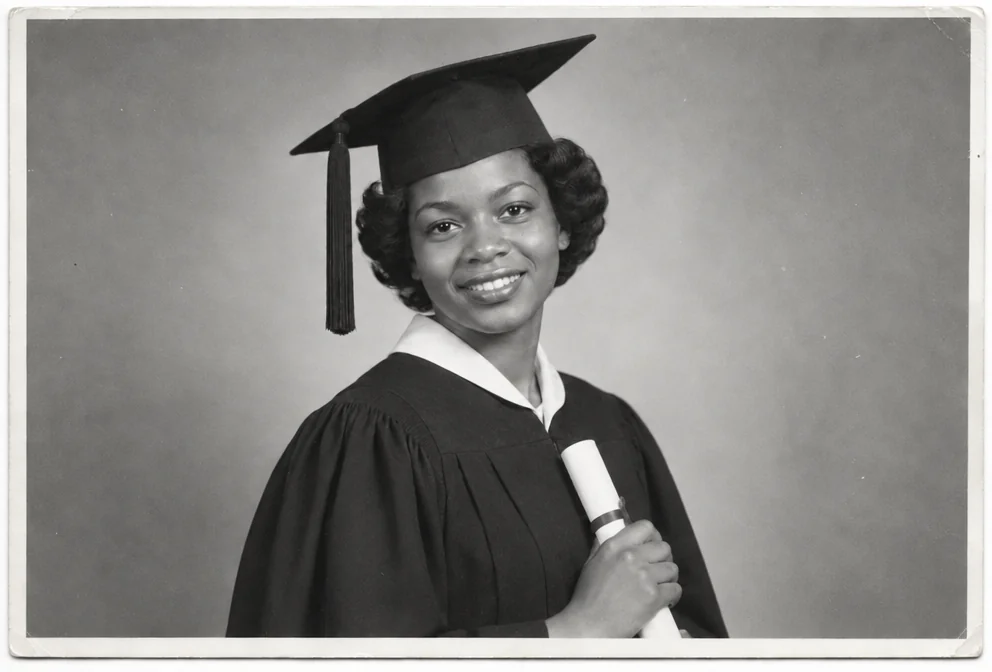
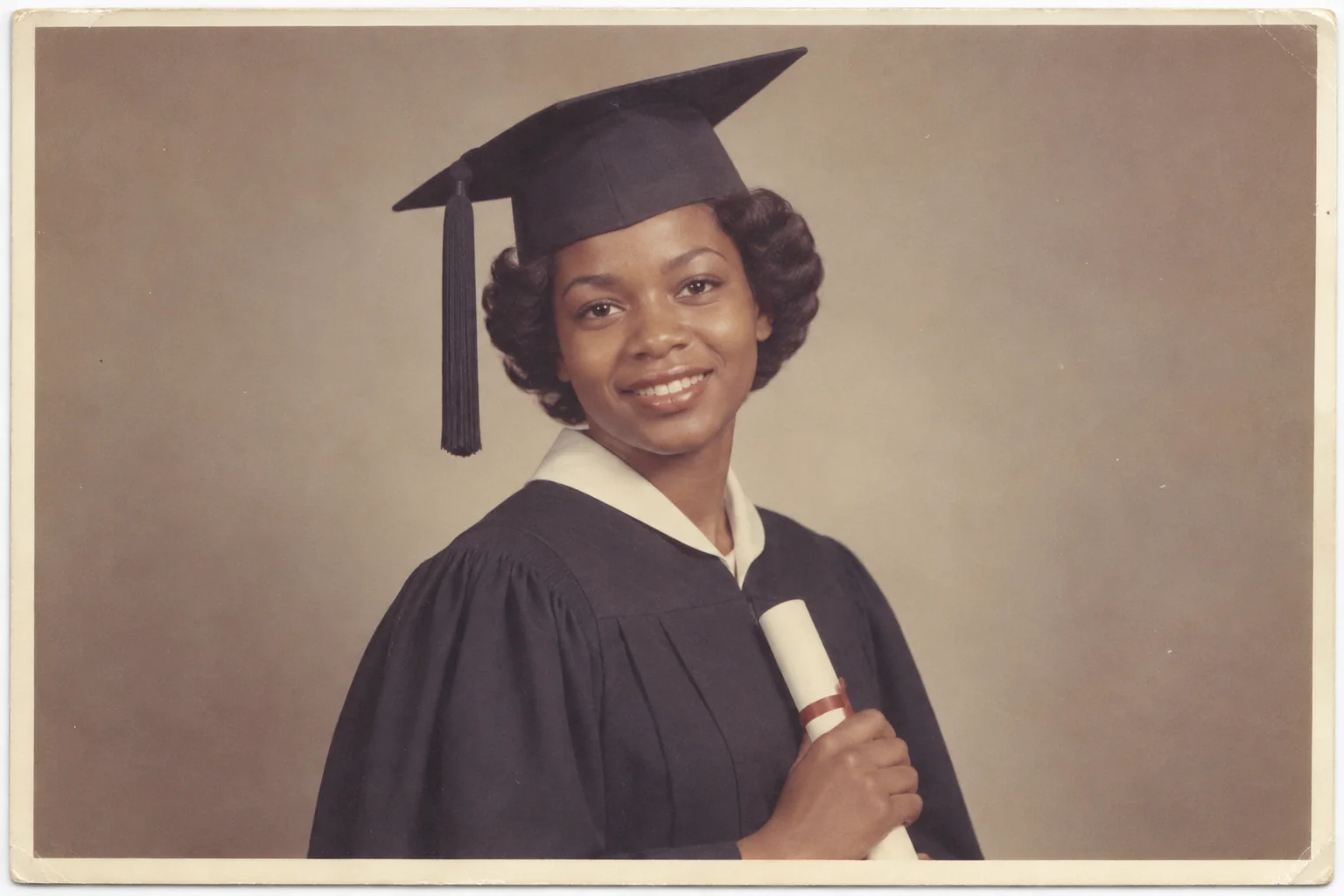
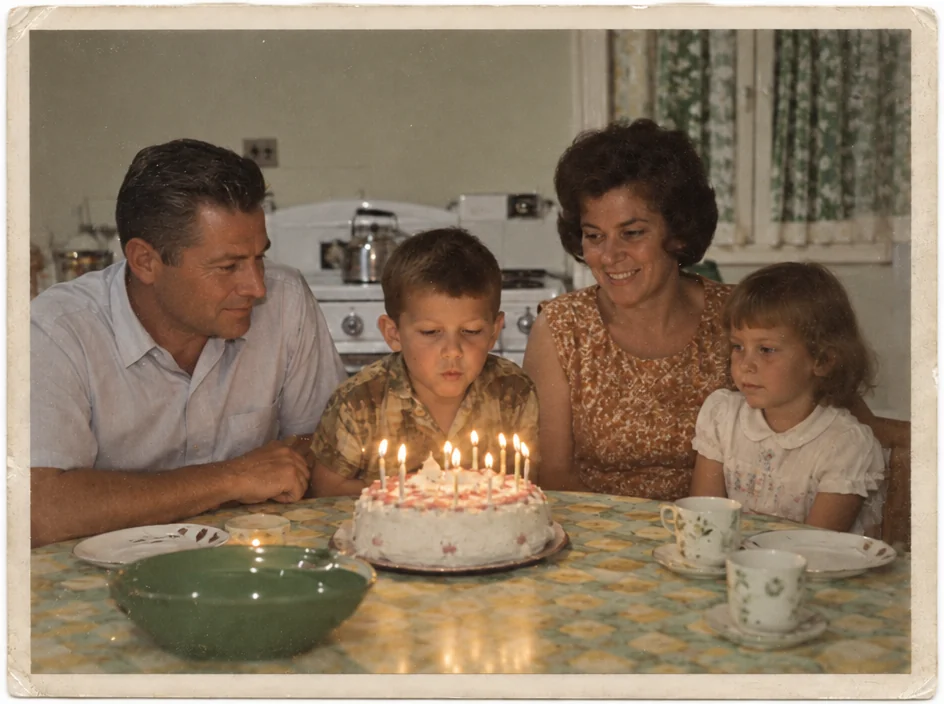
Restored by this tool from the original. Drag the handle to compare before and after.
Removing the color from a photograph is easy; doing it well is not. A plain desaturation turns a red jumper and green grass into the same grey and leaves faces looking flat and muddy. A good black-and-white conversion decides how each color should translate into tone, the way a photographer would have chosen a filter or a paper grade in the darkroom. The Black & White Converter makes those decisions: skin becomes a pleasing, luminous grey, skies keep their clouds, and the full range from paper white to deep black is used. Every detail is kept and nothing in the frame is moved. It works on color prints, color slides and digital photos alike, from a 1960s print to last summer.
The Style select sets the mood. Classic gives a full tonal range with a natural balance of shadow and highlight, the general-purpose choice for family photographs and the one that best matches prints from a good lab. High contrast produces a punchier result with deeper blacks and brighter whites, which suits strong shapes, architecture and dramatic light, and can rescue a flat, overcast snapshot. Soft lifts the shadows for a gentle, low-contrast look with a lot of mid-grey, kind to faces and to photographs of babies and older relatives. The style is only a tonal choice; identity, expression and clothing stay as photographed. The three styles are worth trying in turn on a difficult photo, since a print that looks flat in Classic can look right in High contrast and a harsh one gentle in Soft.
A common reason to convert a color photo is that its color has gone wrong: a magenta shift that no correction quite fixes, or a mix of tungsten and daylight that gives everyone two skin tones. Black-and-white sidesteps that entirely, and the Memorial Portrait tool offers the same finish for a framed portrait. Results follow the shape of the upload and come back in seconds. A converted photo keeps the grain and the sharpness of the original, so a soft color snapshot will be a soft black-and-white one, and the sharpening or face tools can be run before or after. Save both versions; the color one remains the record. Prints for a memorial or a family tree are often made this way so a mixed set looks like one collection.
Credits per pass
| Tier | Credits | Good for |
|---|---|---|
| Standard | 4 | The print at screen size, quick repairs |
| Pro | 12 | More of the scan is sent, finer faces and texture |
| Max | 44 | The full scan, every readable detail kept for print |
What you can tell it
- Color photo
- StyleClassicHigh contrastSoft
- Result · Same ratio as the original
In the Studio
- Pass the result into any other tool without uploading again
- Standard, Pro and Max tiers, with the cost shown before you run
- Every restoration kept in your library beside its original
- Upscale to 32 MP for framing, or make a short moving version
About this tool
Often used next
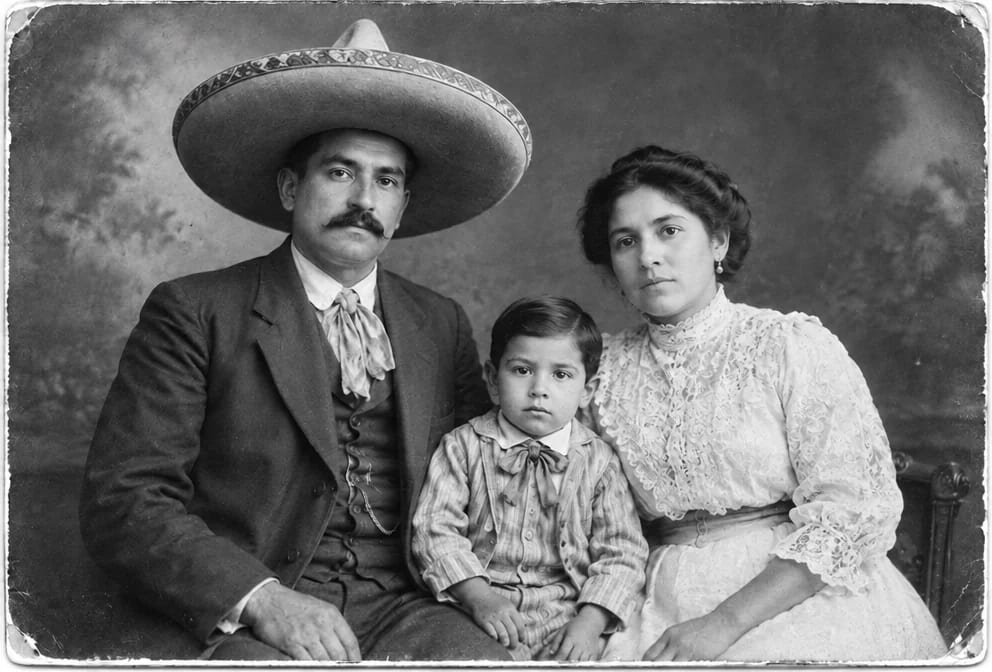
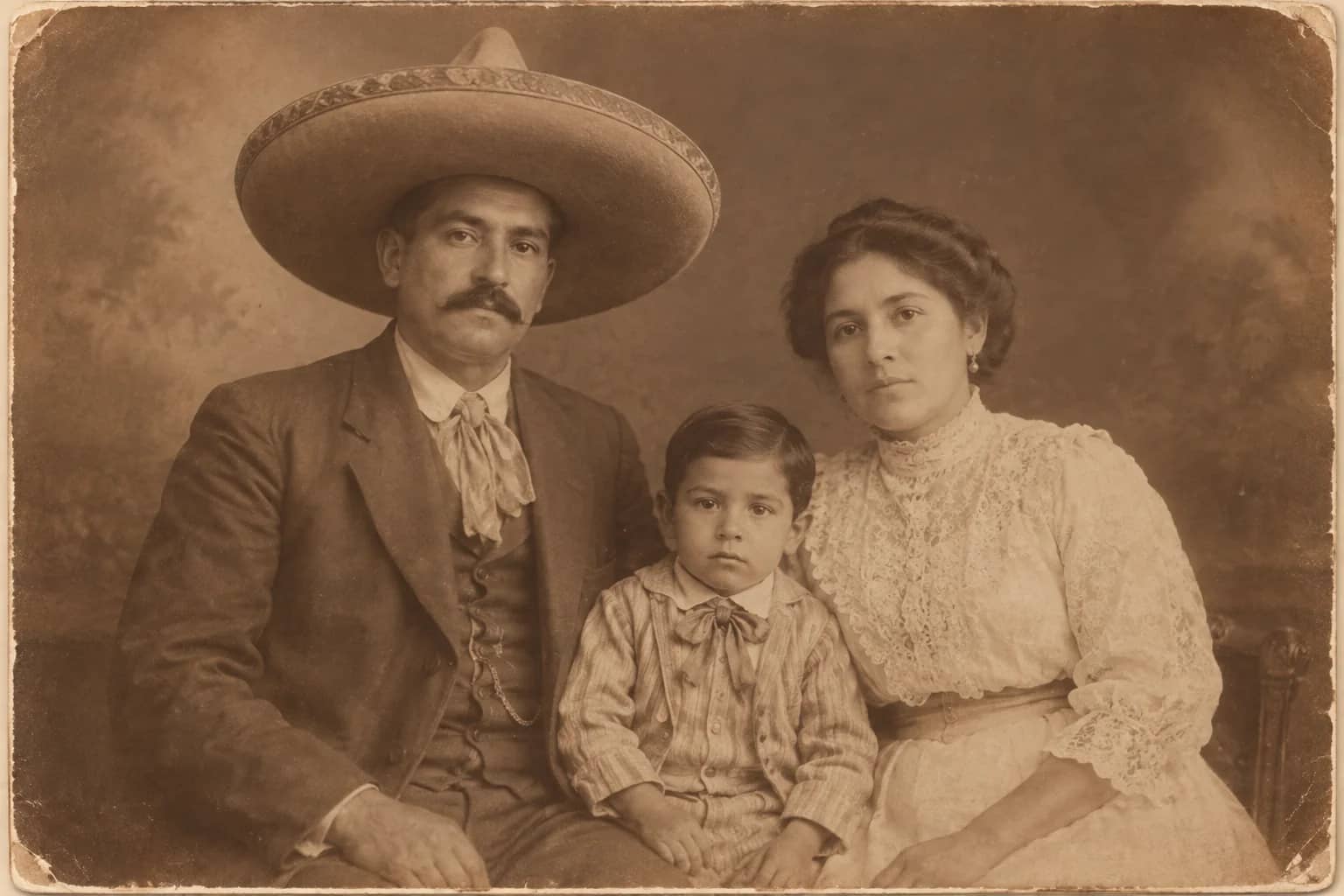
Sepia to Black & White
Take the brown out of a sepia print and give it a full-range monochrome tone
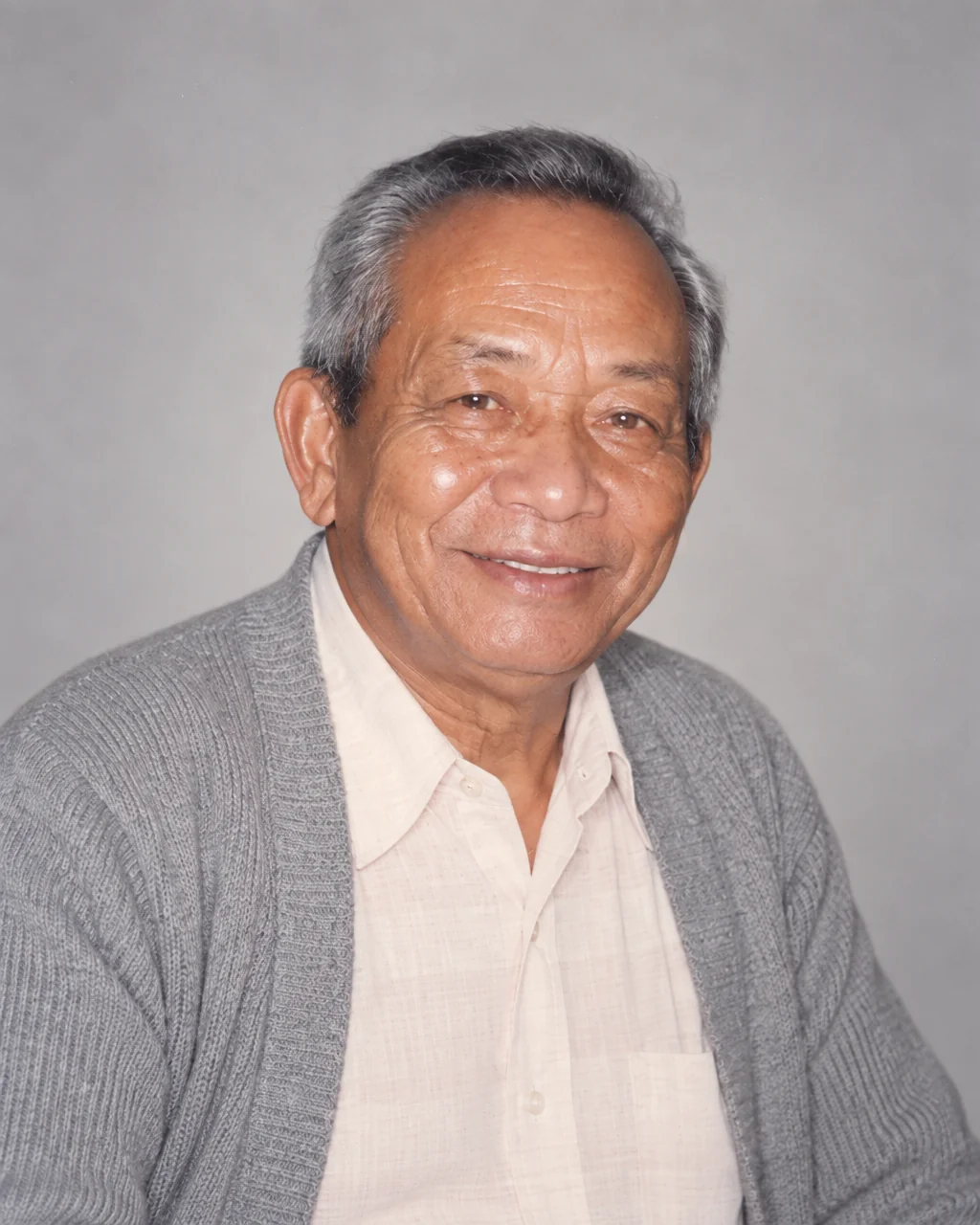
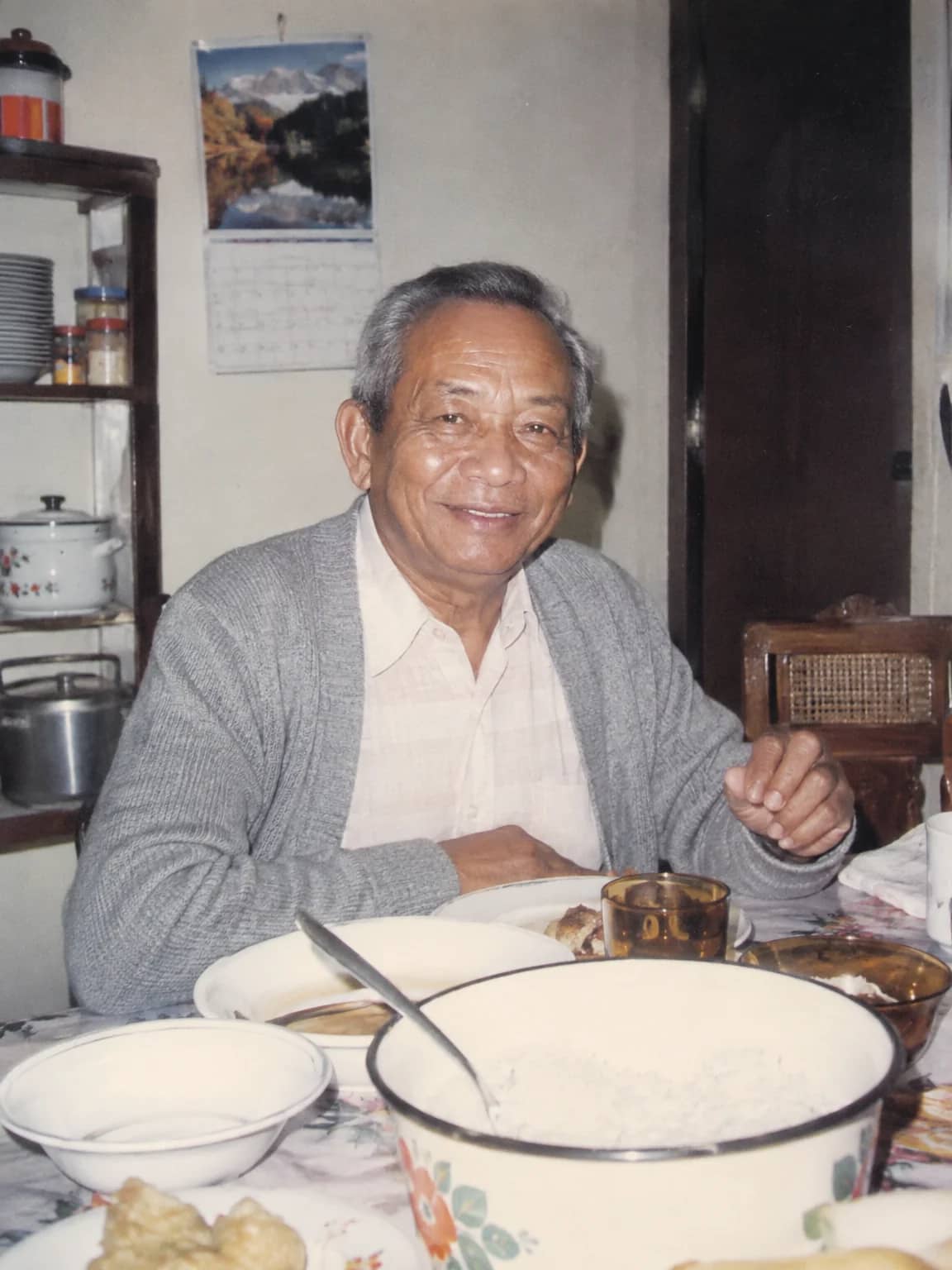
Memorial Portrait
A gentle, restored head-and-shoulders portrait for a service, card or frame
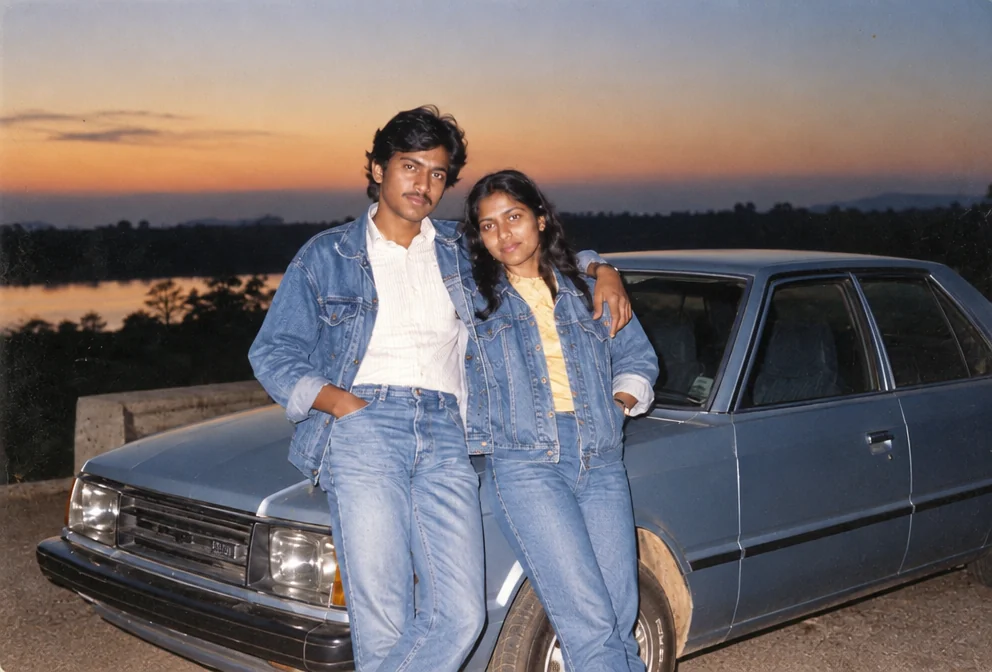
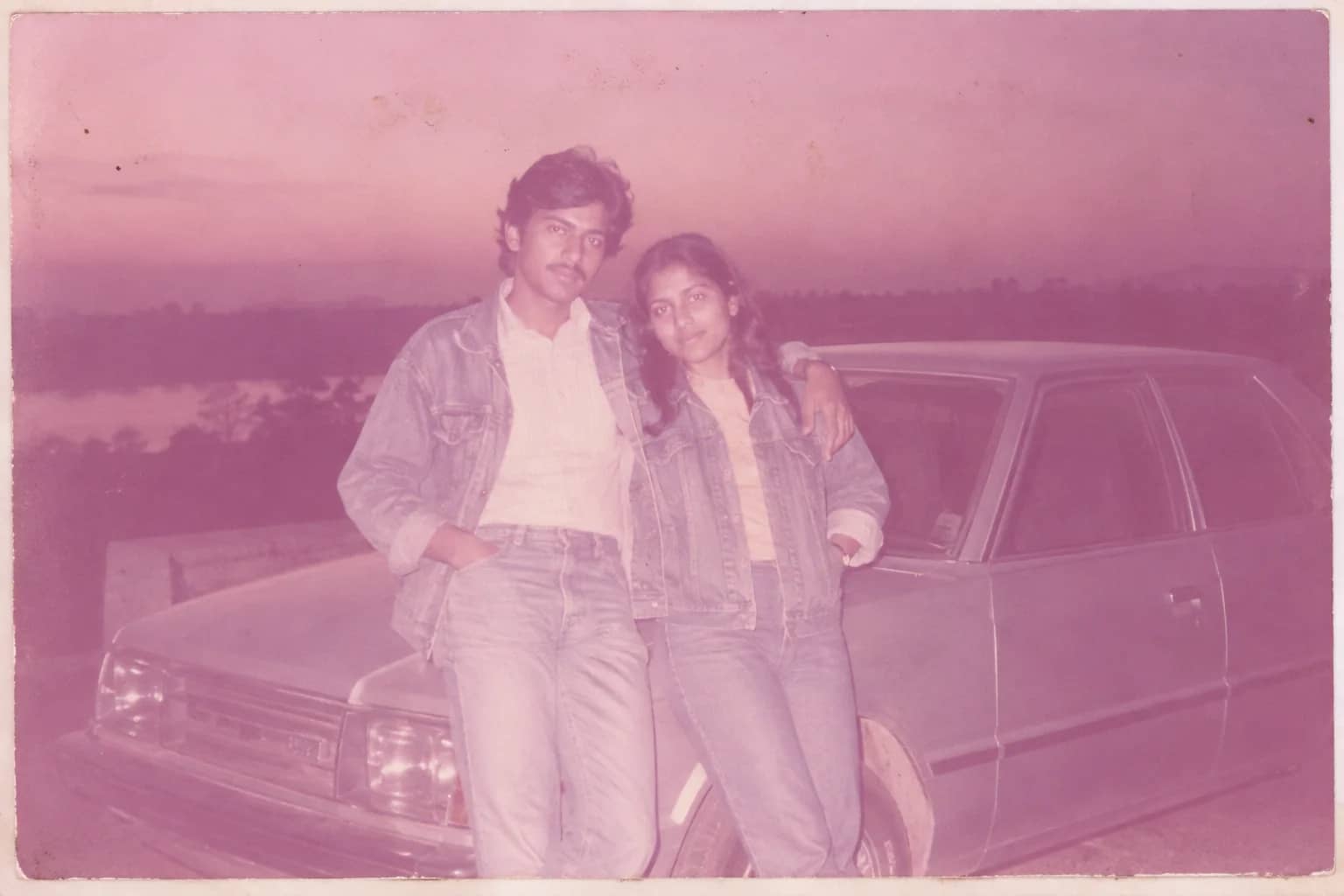
Faded Photo Fixer
Bring back contrast and true color to a yellowed, pink-shifted or bleached print
Exposure Fixer
Recover a too-dark, too-bright, flash-lit or backlit photo without an HDR look